
How to restore an earlier version or a deleted chapter in WriteWithPaige
Every chapter and Story Bible entry keeps earlier versions you can preview and restore. Name a version before a big rewrite with “Save a version”. Deleted chapters and Bible entries wait in “Recently deleted” for 30 days, and restoring never throws away what you have now.
6 min readUpdated

On this page
Step by step
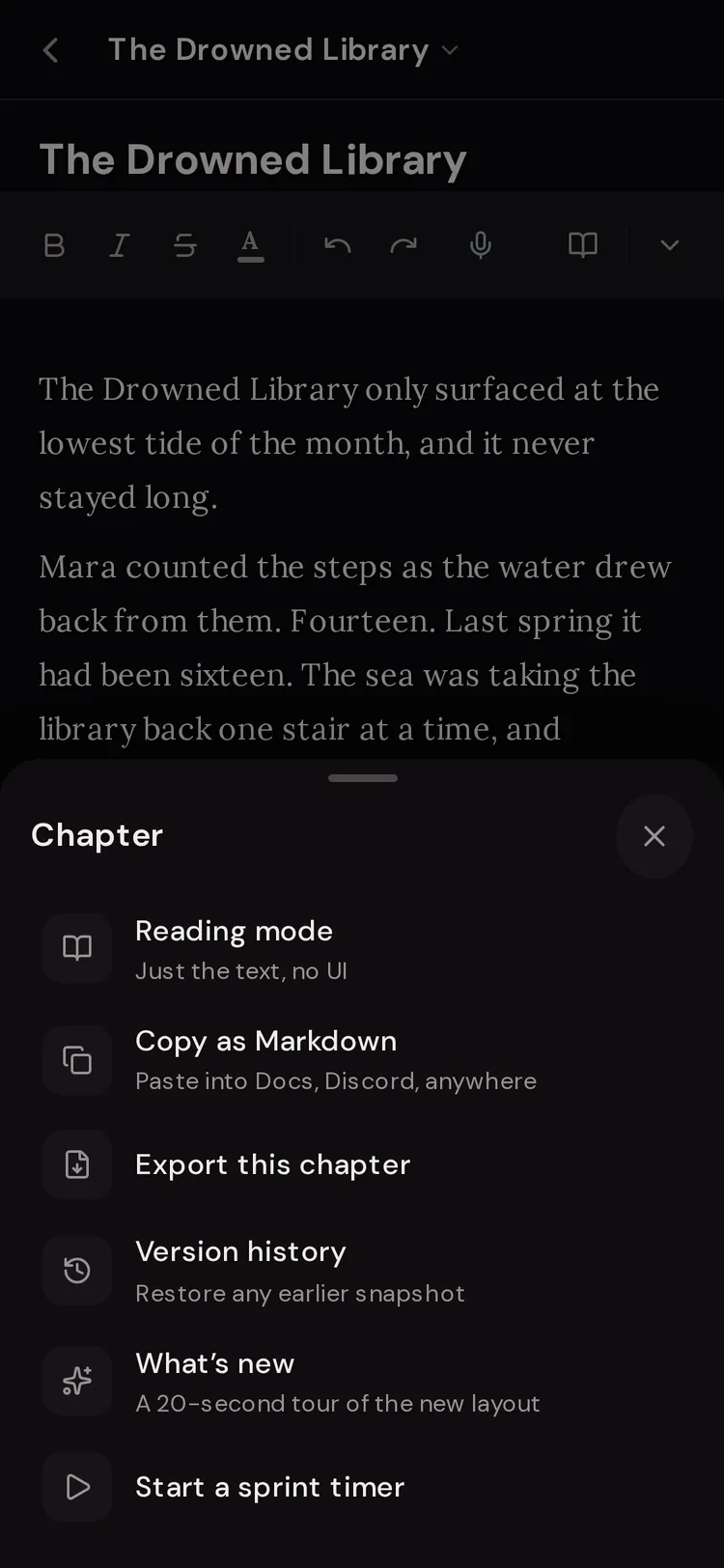
Step 1: Open Version history
In the chapter, tap ⋯ in the status bar under the page and choose “Version history”. For a Story Bible entry, tap “History” at the bottom of the entry.
Step 2: Preview a version
Tap any version in the list. Its text shows on the right. Each one says what made it, such as “Autosave” or “Before suggestion”.
Step 3: Restore it
Tap “Restore this version” and confirm. Your current text is saved to history first, so you can undo the restore.
Step 4: Name a version before a big change
Tap “Save a version”, type a name in “Name it (optional)” (for example “Before cutting the flashback”) and tap “Save”.
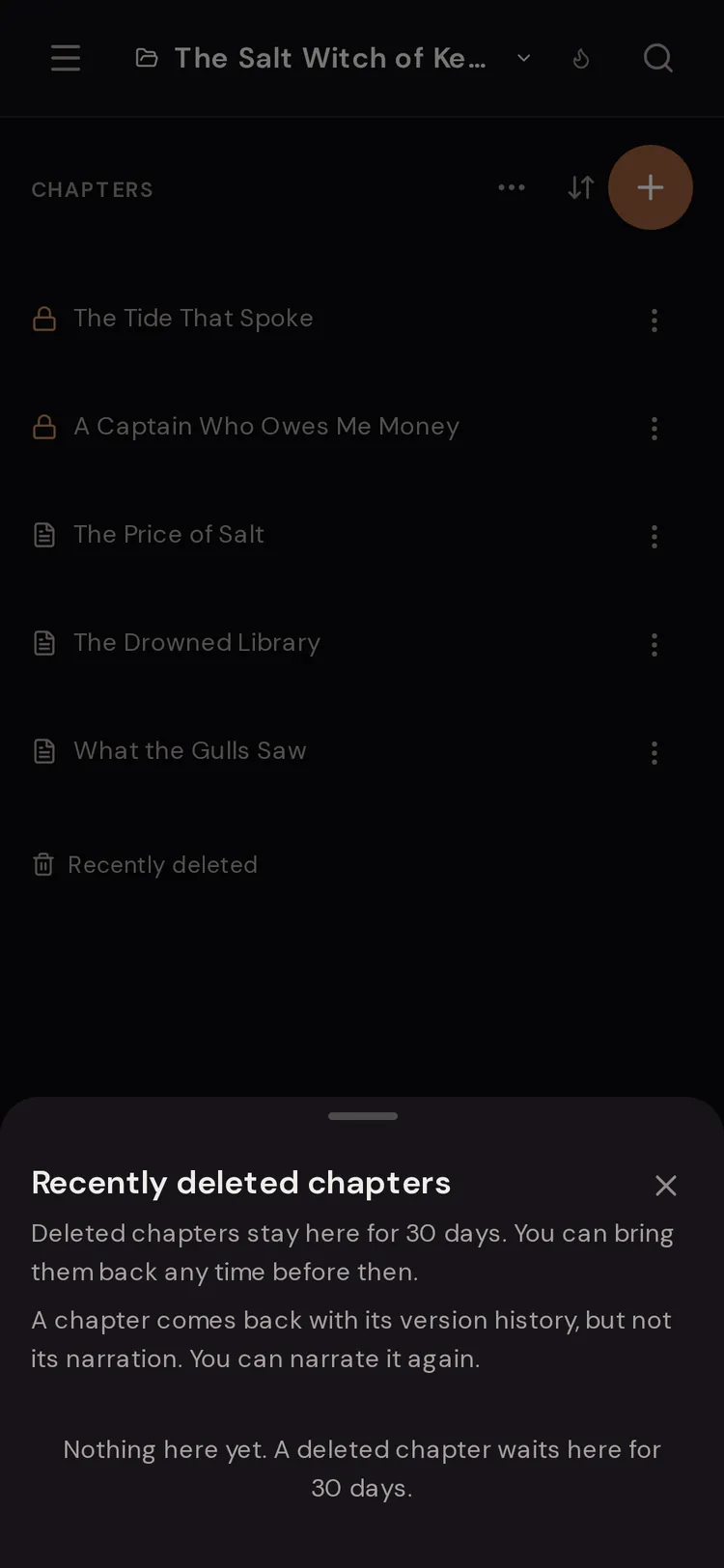
Step 5: Bring back something you deleted
At the bottom of the Chapters list or the Story Bible, tap “Recently deleted”, then “Restore”. This works for 30 days.


What the version labels mean
Snapshots are saved automatically as you write, and at key moments. The label tells you why each one exists. A version you named shows its name instead (or “Saved version” if you left the name blank).
- “Autosave”
- Automatically while you wrote.
- “Manual save”
- When you saved by hand.
- “Before suggestion”
- Just before you accepted a draft from Paige. Restore this to undo a change you accepted.
- “Before restore”
- Just before you restored an older version. Restore this to undo the restore.
- “Conflict”
- When two copies clashed and you resolved it.
- “Before overwrite”
- Just before your text was replaced by another copy.
- “Before a change”
- Just before another kind of change to the text.
"Save a version": your safety net before a big rewrite
Automatic snapshots roll over: a chapter keeps its newest 10, a Bible entry its newest 20. Named versions are kept apart from that, up to 20 per chapter or entry. So name a version whenever you are about to try something bold.
If you have unsaved typing when you tap “Save”, it is saved first, so the named version matches what is on your screen.
Restoring safely
Restoring never loses your current text. The app asks “Restore this version? Your current text is saved to history first, so you can undo this.” Say yes, and your current text becomes a “Before restore” version.
The preview shows the first part of a long version. That is just the preview. Restoring brings back the whole thing.
Story Bible entry history
Open an entry and tap “History” in the bar at the bottom. It is the same panel, with the same labels and “Save a version”. Use it when Paige updated an entry and you liked the old wording better, or when “Update automatically” changed something you wanted to keep.

"Recently deleted" for chapters and Bible entries
Deleting a chapter or a Bible entry is never instant and final. The confirm says you can bring it back from “Recently deleted” for 30 days.
The “Recently deleted” button sits at the bottom of the Chapters list, and at the bottom of the Story Bible for entries. Each row shows when it was deleted, the days left and its word count. Tap “Restore” for one, “Restore all” for everything, or “Open” to read it first. In a shared story, anyone writing it can restore, and each row says who deleted it.
- Notes are not kept: deleting a note is permanent.
- Uploaded files in the Files panel cannot be restored once deleted.
- Narration audio for a deleted chapter does not come back with it.
- Deleting a folder does not delete its chapters. They move to the top level.
Unsaved changes after a crash or closed tab
If the connection drops or the tab closes before a save, the editor keeps your words on that device. Next time you open the chapter there, a blue strip says “Unsaved changes found from” a time, with the word count, and asks “Restore them?”. Tap “Restore” or “Discard”.
This copy lives only on the device and browser you were using. Open the chapter on the same one to get it back. While the save label says “Saved locally”, leave the tab open; it keeps retrying until it says “Saved”.
Last resort: download a full backup
Go to Settings, then “Your Data”, then “Export Data”. Choose what to include (“Projects & Writing”, “Chat History”, “Muses”, “AI Memories”) and download a ZIP of Markdown files. It opens in any text editor, Scrivener or Google Docs.
Make one before a major rewrite, and every so often for peace of mind. To export a polished book (Word, EPUB, PDF), use Export instead.
Questions
Can I undo a change Paige made that I accepted?
Yes. Open Version history and restore the “Before suggestion” version from just before you accepted it. Your current text is saved first, so nothing is lost.
How long are deleted chapters kept?
30 days in “Recently deleted”. After that they are gone.
Why can’t I find an old autosave from weeks ago?
Automatic snapshots roll over, keeping the newest 10 for a chapter and 20 for a Bible entry. Named versions from “Save a version” are kept separately, so name the ones that matter.
Does restoring an old version delete my current text?
No. Your current text is saved to history as “Before restore” first. Restore that if you change your mind.
Is there history for notes?
No. Notes have no version history and are deleted for good. Keep important material in chapters or the Story Bible, or export your notes.
My unsaved changes prompt didn’t appear. Why?
The rescue copy is kept on the device and browser you were writing on. Open the chapter there. Private browsing or blocked site storage can stop the copy being kept.
Related guides
Try it on your own story.
Start writing free