
How to add, sort, lock and organise chapters in WriteWithPaige
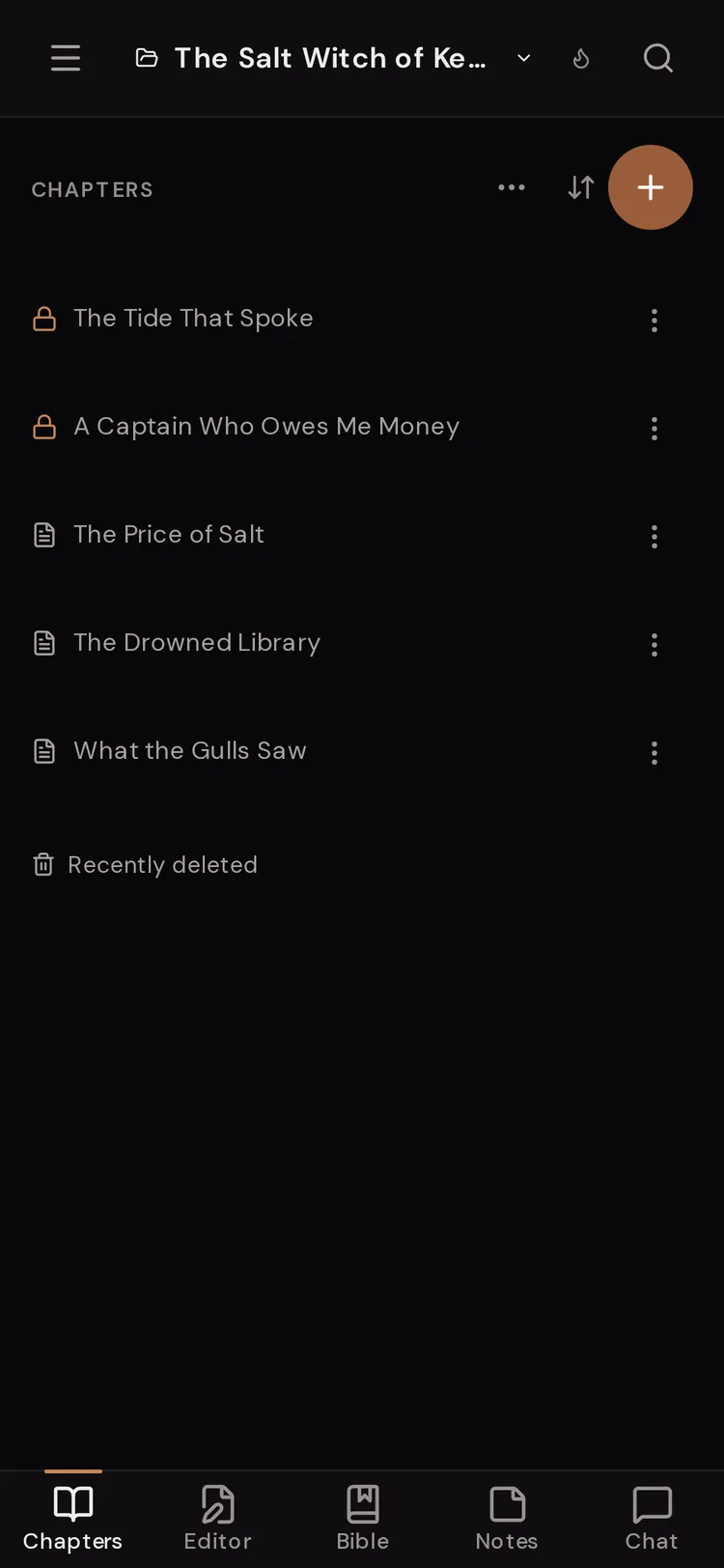
Your chapters live in the Chapters list: tap “+” to add one, drag or use “Move up” and “Move down” to reorder, and use folders for parts or acts. Lock a chapter to stop Paige changing it. Deleted chapters wait in “Recently deleted” for 30 days.
8 min readUpdated

On this page
Step by step
Step 1: Open your chapter list
On a computer, click “Chapters” in the left rail. On a phone, tap the “Chapters” tab at the bottom of the screen.
Step 2: Add a chapter
Tap “+” (its tooltip says “New chapter”). Type a title in the “Chapter title...” box and press Enter. The new chapter opens in the editor, ready for you to write.
Step 3: Put chapters in order
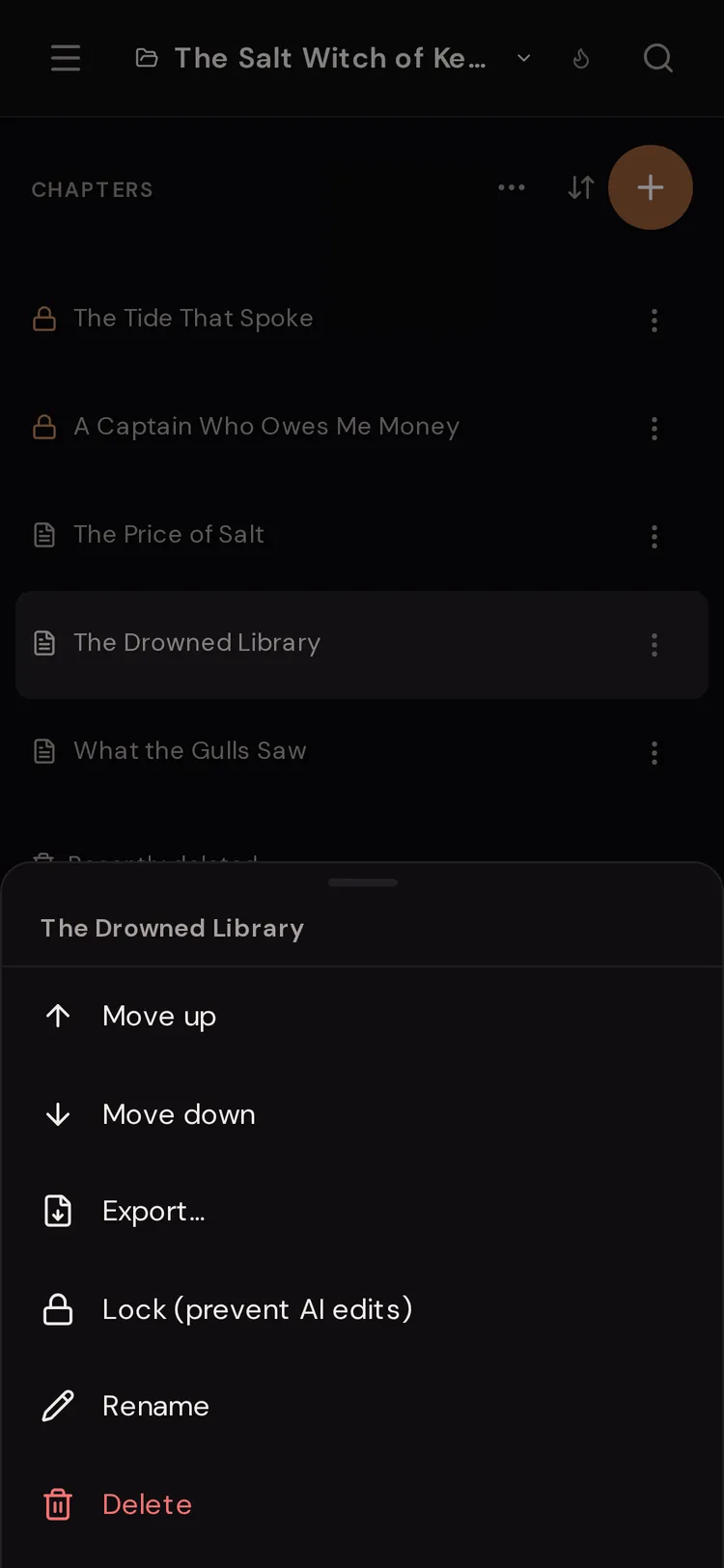
On a computer, drag a chapter by its row. On a phone or tablet, open the chapter’s ⋯ menu and tap “Move up” or “Move down”. The order you set here is the order Paige reads and the order your exports use.
Step 4: Group chapters into folders
Tap the folder button (“New folder”), name it, then drag chapters in, or use ⋯ and “Move to folder…” on a chapter. Folders work well for parts, acts or “cut scenes”.
Step 5: Lock finished chapters
Open the chapter’s ⋯ menu and tap “Lock (prevent AI edits)”. A lock icon replaces the page icon. Paige can still read the chapter, but she cannot change it.
Step 6: Bring back a deleted chapter
Scroll to the bottom of the list and tap “Recently deleted”. Find the chapter and tap “Restore”. You have 30 days.
Sorting the list (and why dragging stops)
Sorting only changes what you see. It never renumbers your book. Your real order, the one Paige and your exports use, is always “Manual order”.
While any other sort is on, a small banner says the list is sorted and reordering is off. Dragging stops, and “Move up” and “Move down” are greyed out. Tap “Manual order” on the banner to go back.
- “Manual order”
- The order you arranged. Used by exports.
- “Title A → Z” / “Title Z → A”
- Alphabetical. “Chapter 2” comes before “Chapter 10”.
- “Recently edited”
- Where you left off, newest edit first.
- “Newest first” / “Oldest first”
- By the date each chapter was created.
- “Longest first” / “Shortest first”
- By word count. “Shortest first” finds the stubs you meant to finish.
The chapter ⋯ menu
Every chapter row has a ⋯ menu. On a computer, a few of these also appear as small icons when you hover over the row.
- “Move up” / “Move down”
- Moves the chapter one place within its folder (or the top level). Greyed out while the list is sorted.
- “Move to folder…”
- Puts the chapter in a folder, or back at the top level. Shows once you have a folder.
- “Export…”
- Exports just this chapter.
- “Lock (prevent AI edits)” / “Unlock (allow AI edits)”
- Stops or allows Paige’s changes to this chapter.
- “Rename”
- Changes the title.
- “Delete”
- Moves the chapter to “Recently deleted” after you confirm.

What a locked chapter means
A locked chapter shows a lock icon in the list. When you open it, a yellow banner says: “This chapter is locked. AI edits are blocked. Unlock it in the chapter list to allow changes.”
You can still type in a locked chapter yourself. The lock only stops Paige. She still reads it, so she keeps facts straight in later chapters. Use it on chapters you have finished polishing, or on a chapter you are about to send to a beta reader.
Chapters have no other status. There is no Draft or Final label: a chapter is either locked or unlocked.
Folders, nesting and "Hide from Paige"
Folders can hold chapters and one level of folders inside them. A folder inside a folder cannot hold another folder. An empty folder tells you to drag a chapter in, or to use ⋯ on a chapter.
“Hide from Paige” is the most useful folder option. Paige stops reading every chapter in that folder, and the folder shows a “Hidden” pill. Use it for deleted scenes, old drafts or a second version of a chapter, so Paige does not mix them into the story. Tap “Let Paige read this folder” to undo it.
Deleting a folder does not delete its chapters. They move back to the top level.
- “Move up” / “Move down”
- Moves the folder among its neighbours.
- “New folder inside”
- Makes a folder inside this one (top-level folders only).
- “Move into folder…” / “Move out of folder”
- Nests the folder in another one, or takes it back out.
- “Export…”
- Exports every chapter in the folder.
- “Hide from Paige” / “Let Paige read this folder”
- Hides or shows the whole folder to Paige.
- “Rename” / “Delete”
- Renames the folder, or removes it and moves its chapters to the top level.
Working on many chapters at once
On a computer, tap “Select several chapters”. On a phone, open “More chapter actions” and tap “Select several”. Tick the chapters you want. A bar at the bottom shows how many are selected, with “All” (or “None”) and a close button.
The bar has five buttons: “Move”, “Lock”, “Unlock”, “Export” and “Delete”. “Lock” and “Unlock” grey out when they would change nothing. The selection stays after you lock, so the other button works as an undo.
Drafts from Paige, the empty list and "Next in your outline"
When Paige writes a brand-new chapter, it appears in the list in italics with a purple “Draft” pill. It is not part of your book yet. Tap “Create” to add it, or the X (“Dismiss draft”) to throw it away.
A new book shows “No chapters yet. Use + to start your first.” with an “Import a manuscript” button underneath. Use that button if you already have a draft in Word, PDF, EPUB or plain text.
If you have a story outline, a line at the top of the list shows “Next in your outline” and the next chapter’s title. Tap “Write it” and Paige’s message box fills in a request for that chapter. Tap the line itself to open the outline. With no outline, the line offers “Outline the rest of your book” instead (it stays hidden in your very first session).

"Recently deleted"
Deleted chapters stay for 30 days. Tap “Recently deleted” at the bottom of the list to see them. Each row says when it was deleted, how many days are left and how many words it had.
Tap “Restore” to put a chapter back, “Open” to read it first, or “Restore all”. In a shared story, anyone writing it can bring chapters back, and each row says who deleted it. If a chapter had narration audio, the audio does not come back.

Questions
Why can’t I drag my chapters?
Either the list is sorted (look for the banner and tap “Manual order”), you are in select mode, or you are on a touch screen. On touch screens, use the chapter’s ⋯ menu and “Move up” or “Move down”.
Does locking a chapter stop me editing it?
No. Locking only blocks Paige’s changes. You can still type, cut and paste in a locked chapter.
Will sorting by title change the order of my exported book?
No. Sorting only changes the view. Exports always follow “Manual order”.
How do I keep an old draft without confusing Paige?
Put it in a folder and choose “Hide from Paige” from the folder’s ⋯ menu. Paige ignores everything in that folder until you choose “Let Paige read this folder”.
I deleted a chapter by mistake. Is it gone?
No. Open “Recently deleted” at the bottom of the Chapters list and tap “Restore”. Chapters stay there for 30 days.
Can I see the word count of every chapter?
The list itself does not show counts. Sort by “Longest first” to compare lengths, and open a chapter to see its exact count in the bar under the page.
Related guides
Try it on your own story.
Start writing free