
How to use the chapter editor in WriteWithPaige
The chapter editor is where you write and polish by hand. It saves by itself, keeps a copy on your device if the connection drops, and lets you select any passage to bookmark it, leave a note, ask Paige about it or rewrite it in one tap.
8 min readUpdated

On this page
Step by step
Step 1: Open a chapter
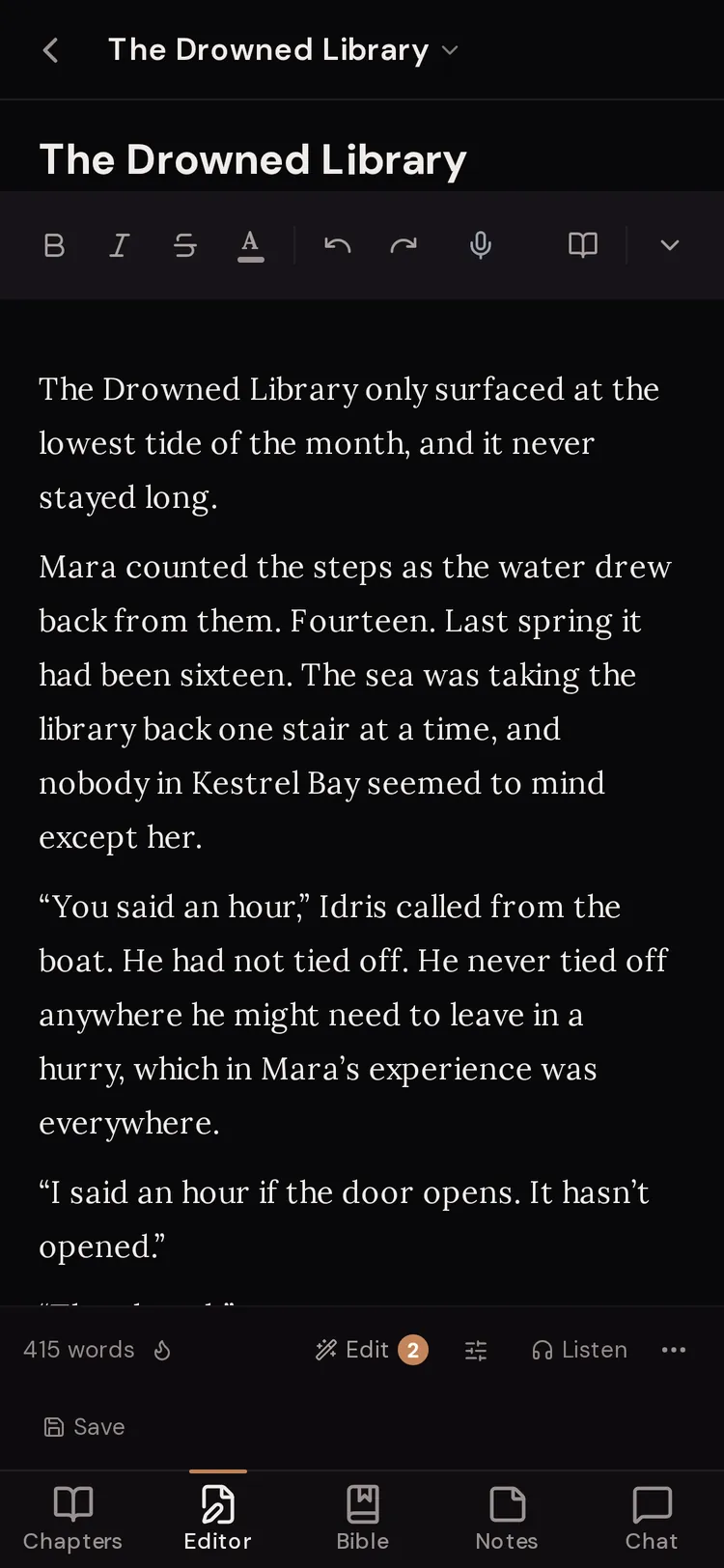
Tap a chapter in the Chapters list. On a phone, it opens in the “Editor” tab. Type a title in “Chapter title...” and start writing where it says “Begin writing your chapter...”.
Step 2: Format your text
Use the toolbar above the page for bold, italics, headings, quotes and lists. On a phone, the short bar shows the basics. Tap “More formatting” for the rest.
Step 3: Select a passage to work on it
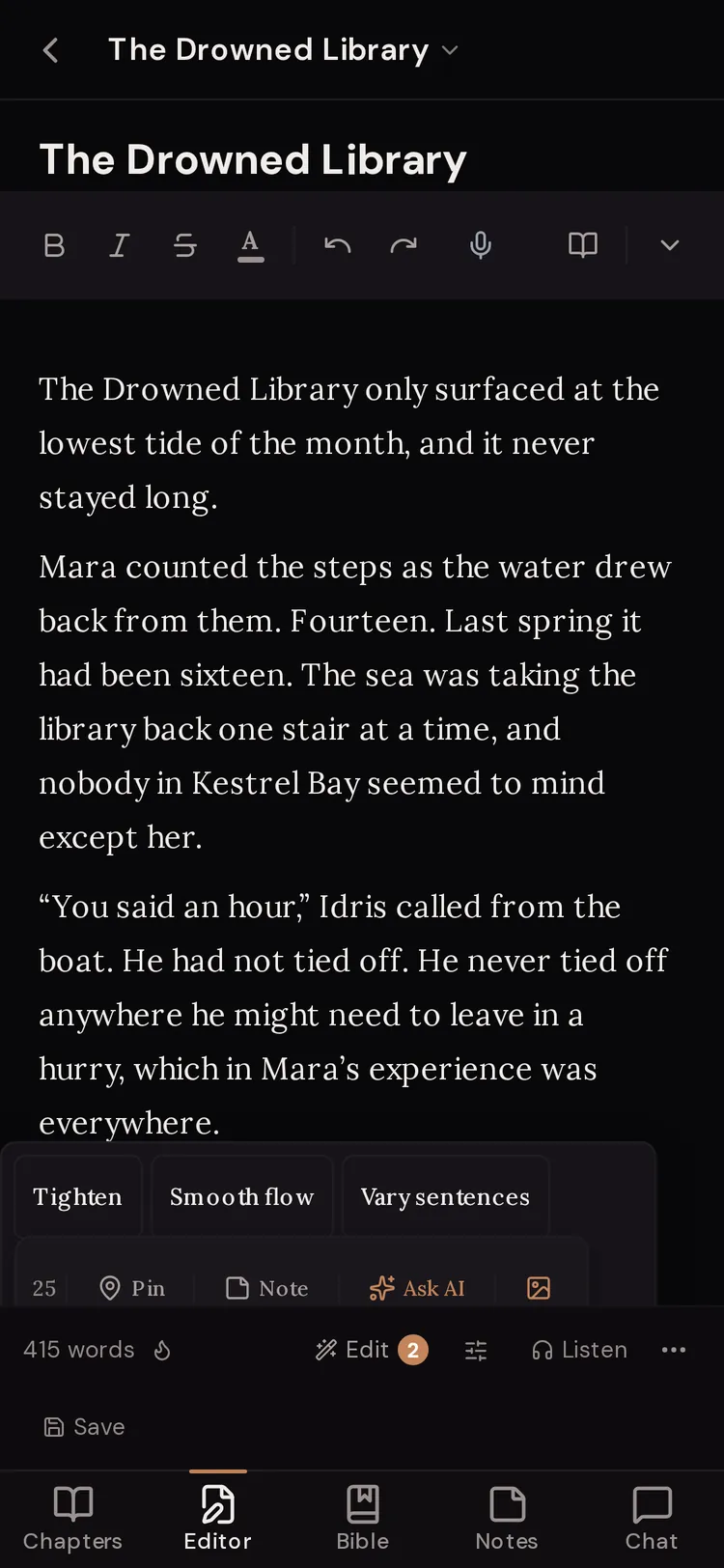
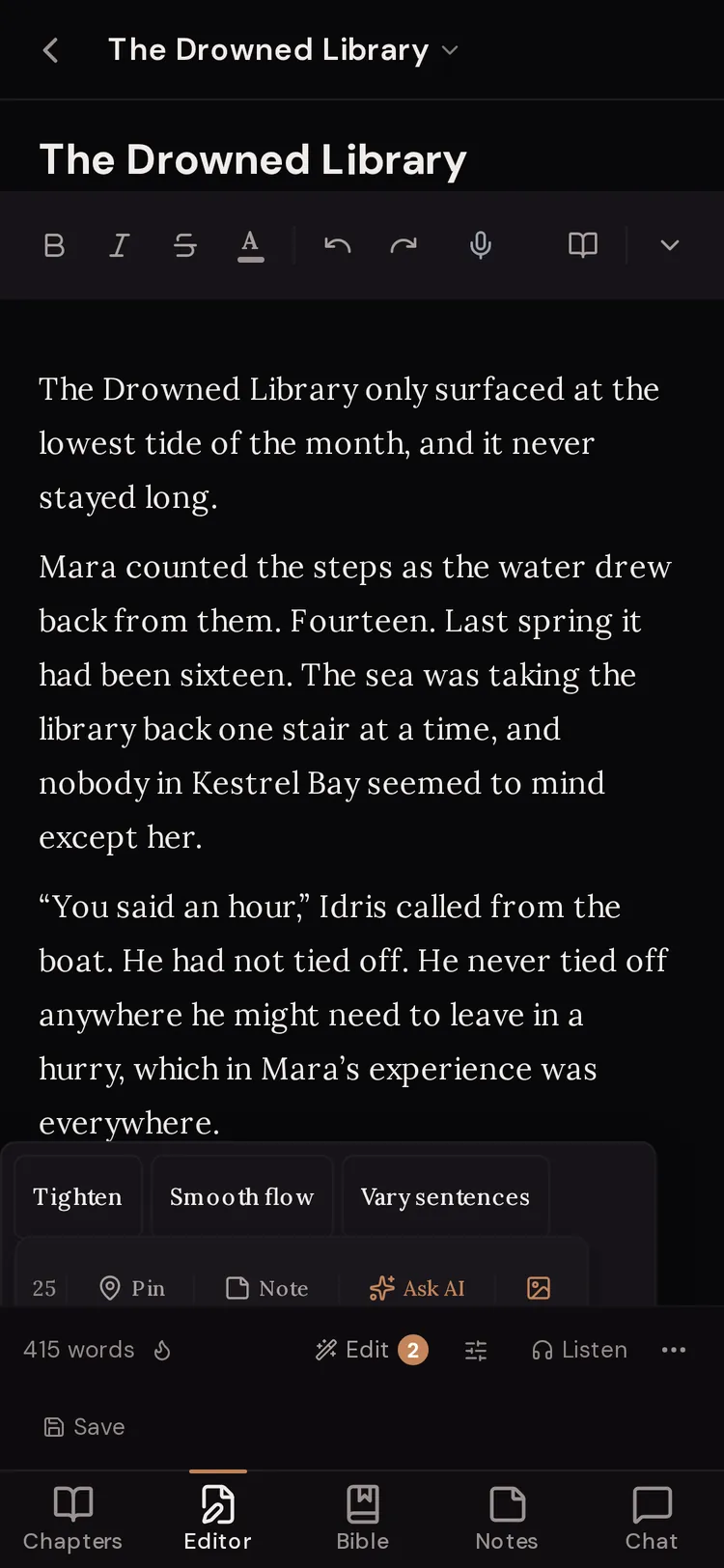
Highlight some text. A small toolbar appears with “Pin”, “Note”, “Ask AI” and “Visualize”, plus the word count of what you selected.
Step 4: Try a quick rewrite
With text selected, pick “Tighten”, “Smooth flow”, “Vary sentences”, “Fix grammar” or “Punch up dialogue”. Paige shows the change in green and struck-through grey. Tap “Apply” to keep it or “Dismiss” to leave your text as it was.
Step 5: Watch the save label
The button at the right end of the status bar shows “Saving...” then “Saved”. You never need to press it, but you can, or press ⌘S (Mac) or Ctrl+S (Windows).
Step 6: Clear the screen when you want to focus
On a computer, tap “Focus” in the status bar to hide everything but the page. On any device, open ⋯ and tap “Reading mode” to read the chapter full screen.


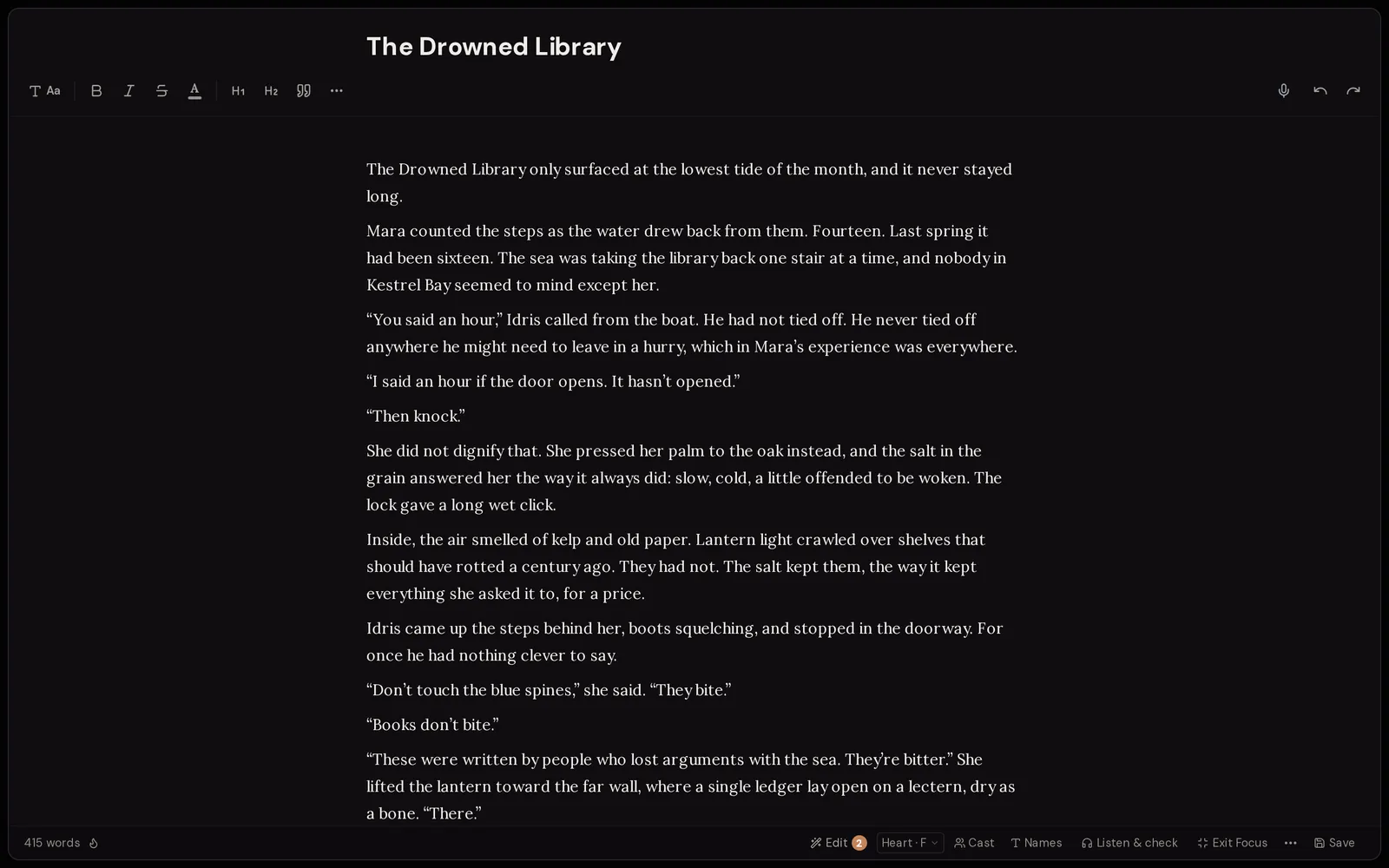
The toolbar on a computer
The toolbar sits above the page. Hover over any button to see its name.
- “Aa”
- Font (Lora, Merriweather, Georgia, Times, System, Inter, Courier, JetBrains), “Smaller text”, “Reset text size to 100%”, “Bigger text” and “Line spacing” (1.0x, 1.15x, 1.5x, 1.75x, 2.0x). These change how the page looks to you, not your exported book.
- Bold, Italic, Strikethrough
- Standard text styles.
- “Text colour”
- Colours the selected words.
- “Big heading” / “Heading”
- Large and medium headings. Headings also show up in the Document Map.
- “Quote”
- Turns a paragraph into an indented quote block.
- ⋯ (“Lists, divider and alignment”)
- “Small heading”, “Bulleted list”, “Numbered list”, “Divider line”, “Align left”, “Centre”, “Align right”, “Justify”. A divider line shows as a scene break in the Document Map.
- Microphone (“Voice typing”)
- Speak and your words are typed where the cursor is. Paid plans only.
- “Undo” / “Redo”
- Steps back or forward through your edits.
The toolbar on a phone
The phone bar keeps what you use most: bold, italic, strikethrough, colour, undo, redo and the microphone. On the right is “Reading mode: just the text”, which is the quickest way to read a chapter back on a small screen.
Tap “More formatting” (the down arrow) to open two more rows: font, text size, line spacing, the three heading sizes, lists, quote, divider and alignment. Tap the arrow again (“Collapse toolbar”) to tuck them away.
The selection toolbar
Highlight any text and this toolbar appears above it.
- Word count
- How many words you selected.
- “Pin”
- Bookmarks this spot. Give it a name in “Bookmark name...” and it appears under “Document Map & Bookmarks”.
- “Note” / “Un-note”
- Marks the selected text as a note to yourself, in Amber, Rose, Sky, Mint or Violet. Notes are left out of word counts, narration and exports. Paige can see them too, so a note like “make this angrier” steers her next edit. Select it again and tap “Un-note” to remove it.
- “Ask AI”
- Opens the chat and limits your next message to the selected paragraphs. The composer shows “Your message will target this selection”. Clear it with the X if you change your mind.
- “Visualize”
- Draws the passage as a picture and puts it in the chapter. Select between 10 and 500 words. It uses your picture allowance.
Quick rewrites
Select at least a sentence and a second bubble offers one-tap rewrites. You see “Rewriting…”, then the change marked up: new words in green, removed words struck through.
Tap “Apply” to swap it in, or “Dismiss” to keep your original. If you type in that passage while Paige is working, “Apply” is turned off and you see “Text changed since this rewrite”, so nothing you just wrote gets overwritten.
Quick rewrites come out of a daily allowance that is larger on paid plans. When it runs out you see “Daily limit reached”.
- “Tighten”
- Cuts extra words without changing meaning.
- “Smooth flow”
- Fixes clunky links between sentences.
- “Vary sentences”
- Mixes up sentence length and shape so the rhythm is less flat.
- “Fix grammar”
- Corrects grammar, spelling and punctuation only.
- “Punch up dialogue”
- Makes speech sharper and more natural.
- “Punch up CTA” / “Simplify jargon”
- Shown instead of “Vary sentences” and “Punch up dialogue” in Brand projects.
The status bar under the page
The thin bar under the page shows where you stand and holds the chapter tools.
- “N words”
- Words in this chapter. Notes you left with “Note” are not counted.
- Flame chip (“Momentum”)
- Your writing streak. Tap it to see today’s words, your daily goal (“Change daily goal”), your book’s target length and a projected finish date. A short daily minimum keeps the streak alive, and each full 7-day week earns a rest day that covers a missed day.
- Sprint timer
- Appears once you choose “Start a sprint timer” from ⋯. Pause, play or reset it. Shown on wider screens.
- “Edit”
- Opens Edit Mode: Edit Pass, Book Pass, Continuity and Book Report.
- “Listen & check”
- Reads the chapter aloud so you hear clunky lines and gaps.
- “Focus” / “Exit Focus”
- Hides everything but the page (computer only).
- ⋯
- “Reading mode”, “Copy as Markdown”, “Export this chapter”, “Version history”, “What’s new” and “Start a sprint timer” (or “Resume sprint timer”).
- Save button
- Shows the save state. Tap to save now.

Every save label, and what to do
The editor saves by itself shortly after you stop typing. The button tells you how that went.
- “Save”
- Nothing new to save. Tap it any time to save now.
- “Saving...”
- Sending your latest words.
- “Saved”
- Your words are safe on the server.
- “Saved locally”
- The connection failed, but a copy is kept on this device. The editor keeps retrying by itself. Keep the tab open until it says “Saved”.
- “Save failed”
- The save failed and the device copy could not be stored either. Copy your latest paragraphs somewhere safe, check your connection, then tap the button to try again.
- “Conflict”
- The chapter changed somewhere else (another tab, device or co-author) while you had unsaved edits. A yellow box appears: see below.
Conflicts and unsaved-changes recovery
A conflict shows “Two versions of this chapter exist.” with “Yours” and “Other copy” side by side and the number of differences. Tap “Compare” to see them. Tap passages from the other copy to bring them in, then “Merge”. Or choose “Keep all mine” or “Use all theirs”. If only the title differs, tap “Save with this title”. Afterwards a strip says “Versions resolved.” with “Undo”.
If you close the tab before your words are saved, the editor keeps a copy on that device. When you come back you see “Unsaved changes found from” a time, with the word count, and “Restore them?”. Tap “Restore” to bring them back or “Discard” to drop them. On a computer, your browser also asks before you close a page with unsaved edits.
Focus mode and Reading mode
“Focus” hides the left rail, the sidebar, the tabs and the side chat, so only the page is left. Press Esc or tap “Exit Focus” to come back. It is on computers only.
“Reading mode” shows the chapter full screen as plain text, with no tools. It works on phones too, from the phone toolbar or ⋯. Press Esc or tap the close button (“Exit reading mode”).
Keyboard shortcuts
There is no shortcuts list inside the app, so here they are. Use ⌘ on a Mac and Ctrl on Windows.
- ⌘/Ctrl + S
- Save the chapter, Bible entry or note now.
- ⌘/Ctrl + B, ⌘/Ctrl + I
- Bold, italic.
- ⌘/Ctrl + Z
- Undo.
- ⌘ + Shift + Z (Mac) or Ctrl + Y (Windows)
- Redo.
- ⌘/Ctrl + K
- Open the search palette.
- ⌘/Ctrl + J
- Show or hide the side chat.
- ⌘/Ctrl + \
- Show or hide the sidebar.
- Esc
- Leave Focus mode, Reading mode, the full-screen composer or a pop-up.
- ← / → on a tab, Delete
- Switch between open tabs, or close the selected tab.
Questions
Do I need to press Save?
No. The editor saves by itself shortly after you stop typing. The button only shows the state, and lets you save right away if you want to.
What does “Saved locally” mean? Is my work lost?
Your work is kept on this device and the editor keeps retrying. Leave the tab open until the label says “Saved”. If you close it, you will be offered “Restore” next time you open the chapter on that device.
Why is the Focus button missing on my phone?
Focus mode is for computers. On a phone, use “Reading mode: just the text” in the toolbar, or “Reading mode” in the ⋯ menu.
Do author notes end up in my exported book?
No. Text marked with “Note” is left out of word counts, narration and exports. Paige can still see it, so you can use notes to leave her instructions in place.
Does changing the font change my book?
No. Font, text size and line spacing under “Aa” change how the editor looks to you. Your export settings decide how the finished book looks.
Can I write in a locked chapter?
Yes. The lock only blocks Paige’s edits. The banner reminds you the chapter is locked, but you can still type.
Related guides
Try it on your own story.
Start writing free