
How to review, accept and dismiss Paige’s drafts
When Paige writes into your book, the change arrives as a draft: nothing is saved until you accept it. Preview the changes, accept them all, keep only some, or dismiss the draft. Dismissing can be undone for a few seconds.
5 min readUpdated

On this page
Step by step
Step 1: Spot the draft
A strip appears above the editor (and above the tabs on a phone). The Editor tab shows a badge. The chat also shows the draft with “Accept”, “Review” and “Dismiss”.
Step 2: Preview it
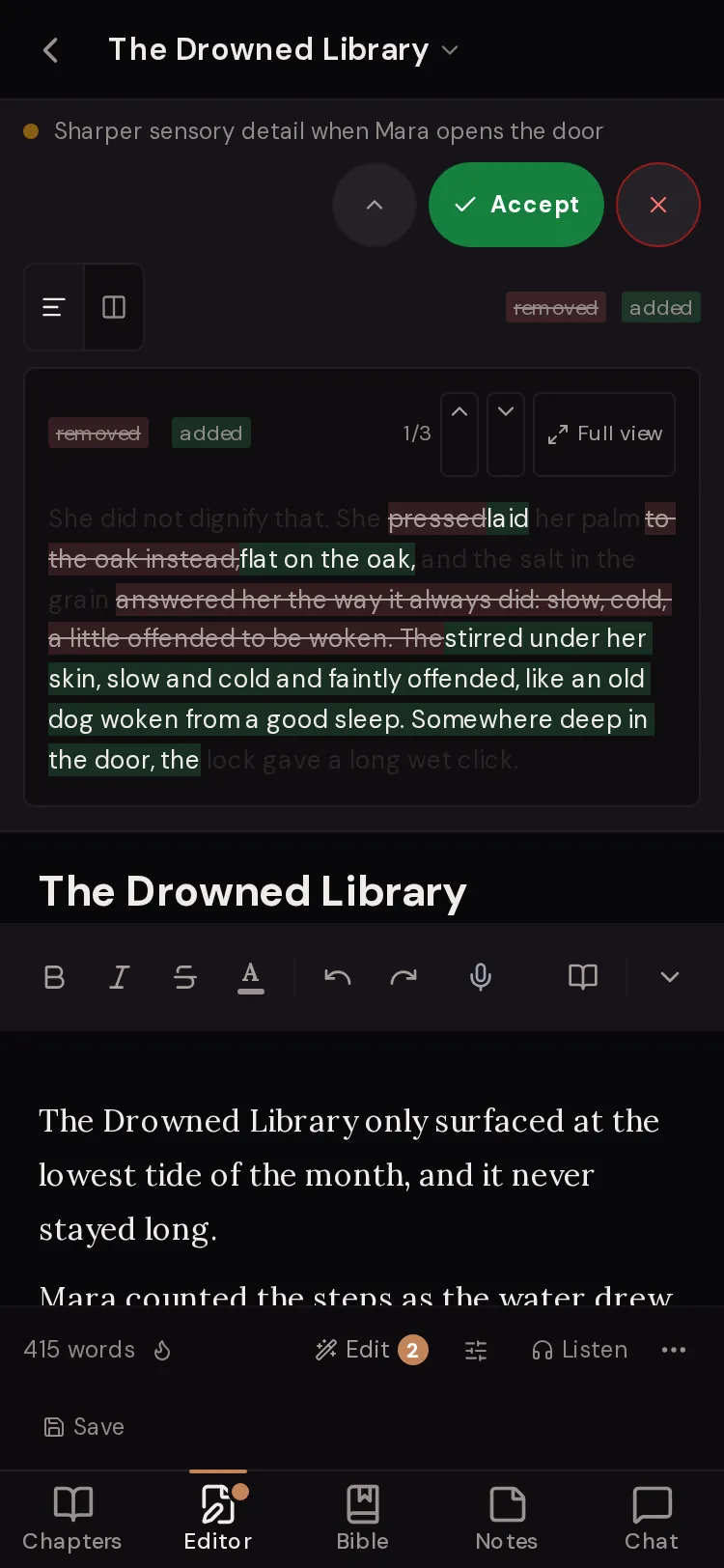
Tap the eye button (“See the changes”). Added text is green, removed text is red.
Step 3: Keep it or throw it away
Tap “Accept” to save it (a new chapter or entry says “Create”). Tap the cross to dismiss it. “Draft dismissed” shows with “Undo” for a few seconds.
Step 4: Keep only some changes
In the preview, click each change to keep or drop it, then tap “Apply” with the count, for example “Apply 3/5”.
Step 5: Handle several at once
Open the chapter. When it has two or more drafts, the banner shows “Accept all” and “Reject all”.
What a draft is, and why
A draft is a change Paige proposes but has not saved: a new chapter, a revision, an added passage, or a new or updated Bible entry. Your book stays exactly as it was until you accept.
Drafts are saved to your account, so they are still waiting if you reload the page or switch from your phone to your computer.
The one exception is a new free writer’s very first chapter, which is saved for you with an “Undo” button in the chat.
The pending strip
The strip shows every waiting draft that isn’t for the file you have open. The first time you see one, it explains: “A draft is waiting here. Nothing is saved yet”. Tap the cross on that note (“Got it”) to hide the explanation.
With several drafts, the strip says how many items were drafted. Each row shows what the draft does and three buttons.
- Eye (“See the changes”)
- Opens the preview. For Edit Pass fixes the button also reads “View changes”.
- “Accept”
- Saves a change to an existing chapter or entry.
- “Create”
- Saves a brand-new chapter or Bible entry.
- Cross (“Dismiss”)
- Throws the draft away. “Draft dismissed” with “Undo” shows for a few seconds.
- “Retry”
- Shows if saving failed. Tap to try again.
The diff viewer: keep changes one by one
The preview shows exactly what would change. Choose “Inline view” to see changes in place, or “Side-by-side view” to see “Original” and “Proposed” next to each other.
Every change starts selected. Click a change to drop it, and click again to keep it. “Select all” and “Deselect all” do the whole list. The button shows how many you are keeping, such as “Apply 3/5”. Tap it to save only those.
Use the arrows (“Previous change” / “Next change”) to jump between changes in a long chapter. “Full view” expands the preview and “Collapse” shrinks it.

Locked chapters
Lock a chapter from its ⋯ menu with “Lock (prevent AI edits)”. Paige can still read it, but she can’t draft changes to it. If you ask, she tells you it is locked.
A locked chapter shows a lock icon and the banner “This chapter is locked. AI edits are blocked. Unlock it in the chapter list to allow changes.” Choose “Unlock (allow AI edits)” to let Paige work on it again. You can always edit it yourself.
Conflicts: when the chapter changed after the draft
If you edit a chapter after Paige drafted a change to it, the draft may no longer fit. Accepting it then shows a note that the chapter changed since this was drafted, so it was not applied. Open the chapter to compare the two versions and choose what to keep.
The compare screen shows “Yours” and “Other copy”. Tap passages from the other copy to bring them in, then save “Keep yours, plus” the ones you picked. You can also discard the other copy, or discard your unsaved edits.
If the chapter or entry was deleted, the draft is dismissed and a short note tells you why.
What happens to a dismissed draft
When you dismiss a draft, it disappears and “Draft dismissed” shows with “Undo” for a few seconds. After that it is gone for good: your book never changed, so there is nothing to restore.
Paige is told you said no. She won’t file the same draft again straight away. If you want a different version, say what was wrong: “Too much description. Try again with more dialogue.”
Changed your mind after accepting? Open “Version history” from the chapter’s ⋯ menu. A version is saved before each accepted suggestion, so you can restore the chapter as it was.
Questions
Does Paige ever change my chapters without asking?
No. Every chapter and Bible change from Paige is a draft until you accept it. The only exception is a new free writer’s first chapter, which is saved with an “Undo” button.
I closed the page. Is my draft gone?
No. Drafts are saved to your account and come back when you open the workspace again, on any device.
Can I accept just part of a draft?
Yes. Open the preview, click the changes you don’t want to drop them, then tap “Apply” with the count.
I accepted by mistake. Can I undo it?
Open the chapter’s ⋯ menu, choose “Version history” and restore the version saved before the suggestion.
Why does a draft say “No text changes to review”?
The proposed text is the same as what you have. It is safe to dismiss.
Why wasn’t my accepted draft applied?
The chapter changed after Paige drafted it, or it was deleted. Open the chapter to compare the versions and choose what to keep.
Related guides
- How to tell Paige what to do: the action bar explained
- How to chat with Paige: messages, rewrites and chat history
- How to restore an earlier version or a deleted chapter in WriteWithPaige
- How to add, sort, lock and organise chapters in WriteWithPaige
- How to edit a fiction manuscript with AI in Edit Mode
Try it on your own story.
Start writing free