
How to play and publish Story Worlds in WriteWithPaige
Story Worlds are ready-made story setups other writers share: characters, places and an opening premise. Open one and you get your own copy to write in or play as an adventure. You can also publish your own Story Bible as a world, and share an adventure for others to play.
5 min readUpdated
On this page
Step by step
Step 1: Open Story Worlds
Go to /worlds while signed in. Search with “Search worlds...” or tap a genre to filter.
Step 2: Open a world
Tap a card to read its page: the description, “Opening Premise”, characters, locations and writing style.
Step 3: Play it
Tap “▶ Play This World” for your own copy as a writing project, or “Play as an Adventure” to have Paige run it as a game.
Step 4: Publish your own
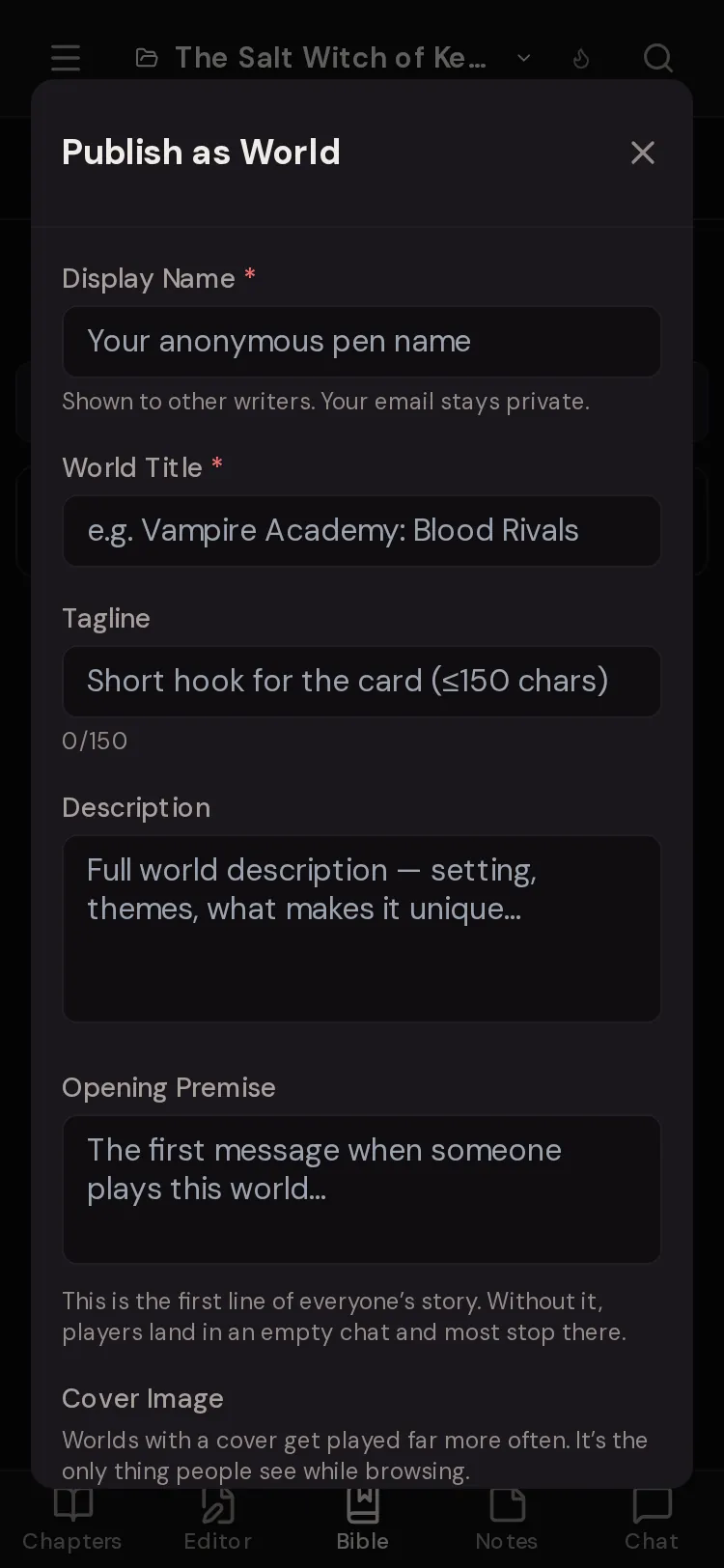
In your book’s Story Bible, tap the globe at the top of the panel. Fill in the form and tap “Publish World”.
Step 5: Share the link
You see “World Published!” and “Your world’s link”. Tap “Copy” and send it to other writers.

What a Story World is
A Story World is a published copy of someone’s Story Bible: their characters, places, items and lore, plus an opening premise, set up and ready to play.
When you play a world, you get your own copy. Nothing you write changes the original, and the creator never sees your story.
Worlds are for signed-in writers only. If someone sends you a world link while you are signed out, you are asked to sign up, and the world starts playing right after.
Browse and search
The /worlds page lists every shared world. Type in “Search worlds...” to find one by name or idea. Tap a genre chip to filter.
The genres are Fantasy, Sci-Fi, Contemporary, Historical, Paranormal, Enemies to Lovers, Forbidden, Ensemble Cast, Slice of Life, Horror, Mystery and Comedy. If nothing matches you see “No worlds found”.
A world’s page
Each world page shows the cover, genre tags and any “Content Warnings” the creator set. Below are “About This World”, the “Opening Premise”, the characters, the locations, other world elements and the writing style. At the bottom is “More worlds”.
- “▶ Play This World”
- Makes your own copy of the world as a writing project and opens it. Paige already knows every character and place.
- “Play as an Adventure”
- Opens adventure setup with this world, so Paige runs it as a game with choices, pictures and narration.
- “Report this world”
- Asks “Why are you reporting this world?”. Type a reason and tap “Submit Report”.
Publish your Story Bible as a world
Open the book you want to share and go to its Story Bible. When the Bible has at least one entry, a globe button appears at the top of the panel (“Publish as a world for others to play”). Tap it to open “Publish as World”.
Publishing copies every entry in that book’s Story Bible, with their pictures. If the book has a Muse set, the first one goes along too. Your chapters are never published.
- “Display Name” (required)
- Your anonymous pen name. It is shown to other writers; your email stays private.
- “World Title” (required)
- The name on the card.
- “Tagline”
- A short hook for the card.
- “Description”
- The setting, themes and what makes it unique.
- “Opening Premise”
- The first message when someone plays this world.
- “Cover Image”
- “Upload cover image”, or “Draw one for me” to have a cover drawn from your title (it uses one picture from your allowance).
- “Genre Tags”
- Pick the genres that fit, so people can find it.
- “Content Warnings”
- Tick anything a reader should know about before playing.
Update or hide a world
Changed your Bible? Tap the globe again. The form now says “Update World”. Saving replaces the world’s entries with your current Story Bible, and you see “World Updated!”.
The top of the update form shows who can see it. “Shared with writers” means signed-in writers with the link can read it and start their own copy. Tap “Hide” to make it “Hidden”: only you can see it, and the link shows a not-found page. Tap “Make visible” to share it again, and “Copy link” to copy its link.
If your book started from someone else’s world, Paige may offer “Share your version of this world?”. Publishing credits the original author and gives your version its own page.
Share an adventure
Adventures can be shared too. In the play screen, tap the share button (“Share this adventure”). Add a tagline and “Your pen name”, then tap “Publish”.
Signed-in writers with the link can play it from the start. Your own game stays private: they get a fresh copy, never your turns. After publishing, the button changes to “Published, copy link”, and “Your adventures” shows how many people have played yours.

Questions
Can people read my story if I publish a world?
No. Only your Story Bible entries, their pictures, the fields you fill in and your first Muse are published. Your chapters stay private.
If someone plays my world, does it change my book?
No. Every player gets their own copy. Your book and your Bible stay exactly as they are.
Why can’t I see the globe button?
It only appears once the book’s Story Bible has at least one entry. Add a character or a place first.
Can I take a world down?
Yes. Tap the globe, then “Hide” at the top of the form. The world becomes hidden and its link shows a not-found page. Tap “Make visible” to bring it back.
Do I need a paid plan to publish or play worlds?
No. Any signed-in writer can browse, play and publish. Playing uses your normal daily allowance.
Related guides
Try it on your own story.
Start writing free