
How to play an adventure with friends (or on stream) in WriteWithPaige
Open your adventure and tap “Play with friends”, then send the invite link. Friends join in their browser with no account, vote on what happens and suggest moves, while you play the turns. Streamers can turn on “Stream mode” instead and let Twitch chat vote.
5 min readUpdated

On this page
Step by step
Step 1: Open your adventure
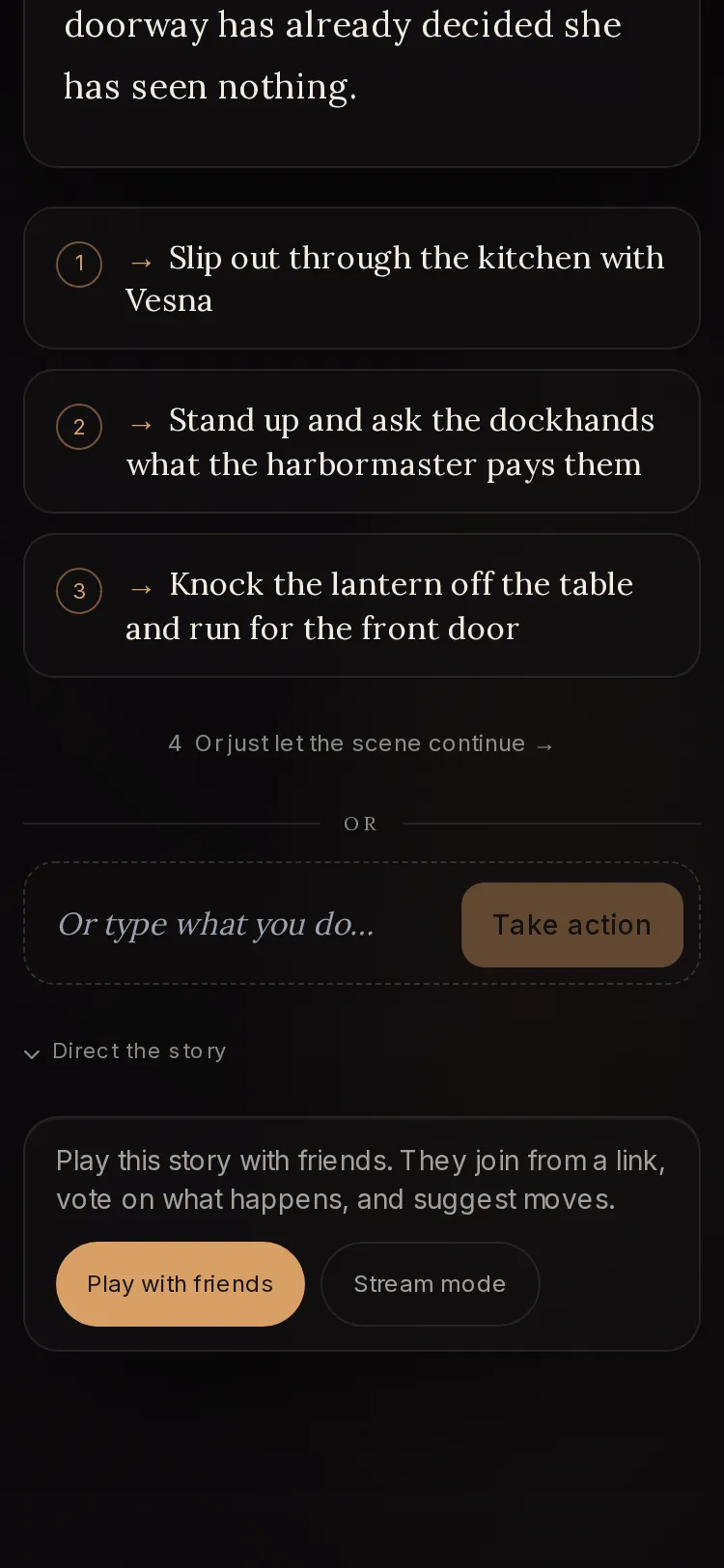
Start an adventure or open one from “Your adventures”. The “Play with friends” panel sits in the play screen.
Step 2: Tap “Play with friends”
The panel reads “Play this story with friends. They join from a link, vote on what happens, and suggest moves.” Tap “Play with friends”. Streaming? Tap “Stream mode” next to it instead (see below).
Step 3: Send the invite
Tap “Copy invite” and paste the link into a group chat. The panel shows “Playing with friends” and how many people are here now.
Step 4: Friends join
Each friend opens the link, types “Your name in the game”, ticks “I’m 18 or older and I agree to the terms” and taps “Join the game”.
Step 5: Play the turn
Friends vote on the three choices and send ideas. You see the vote count next to each choice and their ideas under “Ideas from your friends”. You pick, or tap an idea to play it.
Step 6: End the game
Tap “End” when you are done. Friends see “This game has ended” and a button to start their own.

Who can join, and how many
Up to five guests can join, so six people play including you. If a sixth guest tries, they see “This game is full right now.”
Guests do not need an account. They need a name to show the others, and they must confirm they are 18 or older. The header shows how many are playing.
What your guests see
Guests open a page that says “You’re invited”. Before the first scene arrives they see “Waiting for the first scene…”. Then they get each new scene as you play.
- “Join the game”
- Joins with the name typed in “Your name in the game”.
- “Vote on what happens next”
- Picks one of the three choices for this turn.
- “Suggest a move”
- Type a move in “Or suggest your own move” and tap “Send”. The host sees it next to the choices.
- “Report this game”
- Flags the game for review. The guest sees “Thanks. We’ll take a look.”
- “Start my adventure” / “Start your own adventure”
- Takes the guest to start their own adventure, which they can host for their friends.
Clean mode while others watch
While a room is open, the panel says “Clean mode is on while others are watching.” Every turn in that adventure is written clean, so nothing explicit lands on a friend’s screen.
If a scene still trips the safety check, guests do not see it. You see “This scene is hidden from the others. Play on and the next one will show.” Guests see “This scene is hidden here. The game carries on.”
When you tap “End”, the room closes and your adventure goes back to how you normally play it.
Stream mode: let your Twitch chat vote
Stream mode turns your adventure into a show. Your viewers watch the story on a clean, big-text overlay and vote on what happens by typing in your Twitch chat.
Tap “Stream mode” in the play screen. Type “Your Twitch channel name” and tap “Turn on chat votes”. The panel then shows “Stream mode is on” and an overlay link. Tap “Copy overlay link” and add it to OBS (or any streaming app) as a browser source.
The overlay shows each scene and the three choices. Chat votes by typing !1, !2 or !3, and the overlay says “Type !1, !2 or !3 in chat to vote”. You see the vote count next to each choice and still make the call. When you tap “End”, the overlay says “Thanks for playing” and shows a short link where viewers can play the same world.
- The overlay link is shown once and works like a password. Keep it off screen. If it stops working, the overlay says to copy a new one from the game.
- Clean mode is on for the whole stream, and any scene that trips the safety check shows as “This scene is hidden on stream.”
- Votes only pick between Paige’s three choices. Nothing else from your chat is read or kept, and chat text never reaches Paige.
- You are responsible for your stream and for the rules of the platform you stream on. See section 8B of the terms.
Questions
Where is “Play with friends”?
In the play screen of an adventure you host. It is not in Settings. Guests never need it: they join from your invite link.
Can I stream an adventure on Twitch?
Yes. Tap “Stream mode”, add your Twitch channel name, tap “Turn on chat votes”, then add the overlay link to OBS as a browser source. Chat votes with !1, !2 or !3.
Do my friends need an account or a paid plan?
No. Guests join from the link with just a name and an 18+ confirmation. Only the host’s account plays the turns.
Whose messages do the turns use?
The host’s. Each turn costs one message from the host’s allowance, as it would when playing alone. Votes and suggestions from guests cost nothing.
How many people can play?
You plus up to five guests, so six in total.
Does Tabletop work with friends?
Yes. The room works on any adventure you host. Your friends vote on the choices and suggest moves; the dice and the sheet stay yours.
Related guides
Try it on your own story.
Start writing free