
Audiobook Guide
Hear your book, performed
Turn any chapter into narrated audio — from a quick proofing read to a full-cast performance where every character speaks in their own voice.
Your first audiobook, in three steps
- 1Open a chapter in the workspace — the Listen controls sit in the bar under the editor.
- 2Pick a voice. Instant plays in seconds; Signature renders a full performance in the background.
- 3Press Listen. Stream it in the built-in player or download the MP3.
Voices
Instant vs Signature
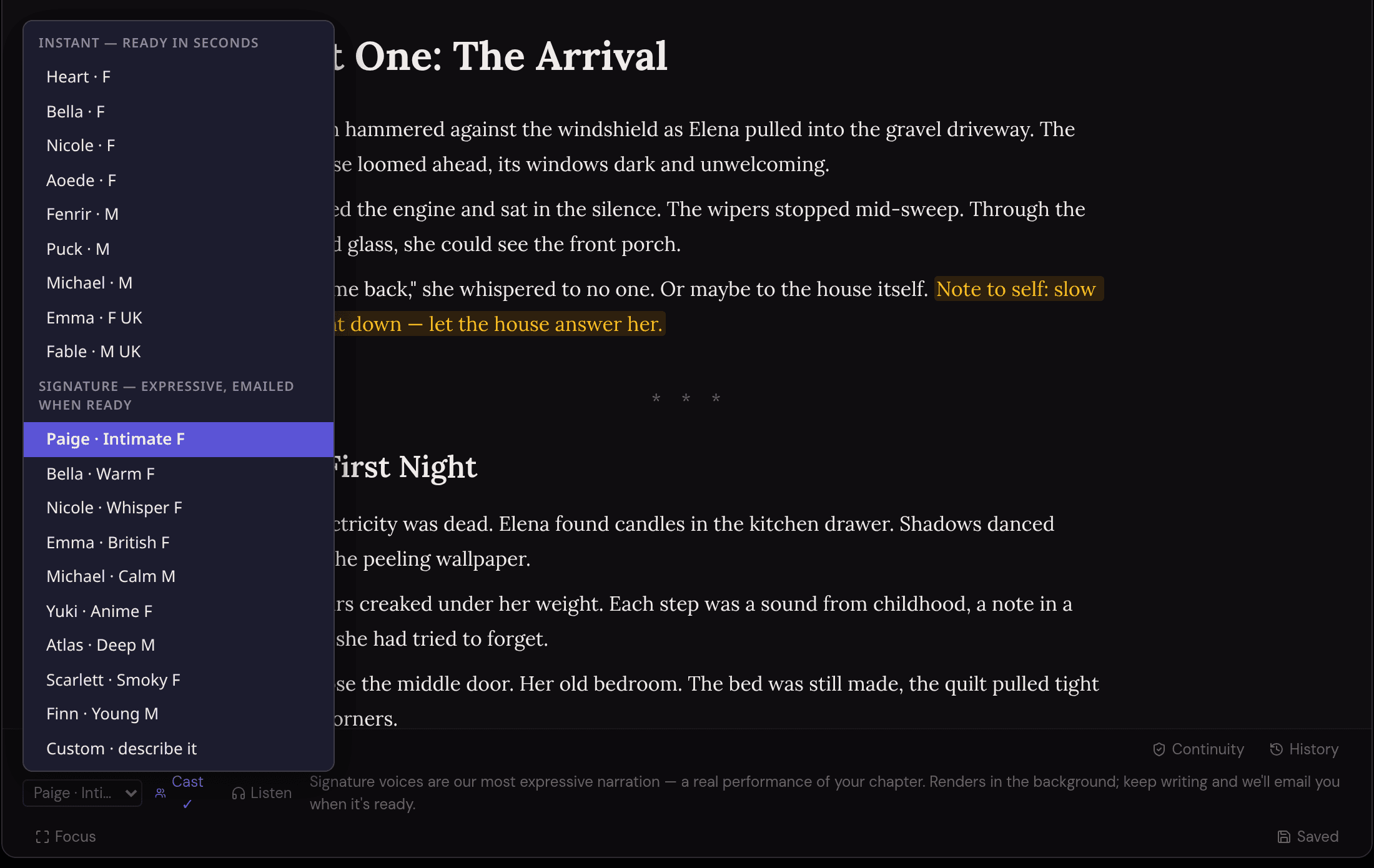
Every chapter has a Listen button in the editor's status bar with a voice picker beside it. The picker has two groups:
- Instant voices read your chapter in seconds: nine narrators for fast proofing-by-ear while you draft.
- Signature voices are a directed performance: the delivery shifts with your scene's emotion, line by line. They render in the background over a few minutes. Keep writing; we email you when the audio lands.
There's also Custom at the bottom of the Signature group: describe a narrator in a sentence (“deep, gravelly male storyteller in his 60s, slow and warm”) and we design that voice for you and keep it consistent across chapters.
Good to know
- *Draft with Instant voices, then render the final chapter with a Signature voice.
- *Hearing your prose catches echoes and clunky rhythm your eyes skip over.
- *The audio player appears under the editor bar — stream it or download the MP3.
Multi-Voice Dialogue
Give every character a voice
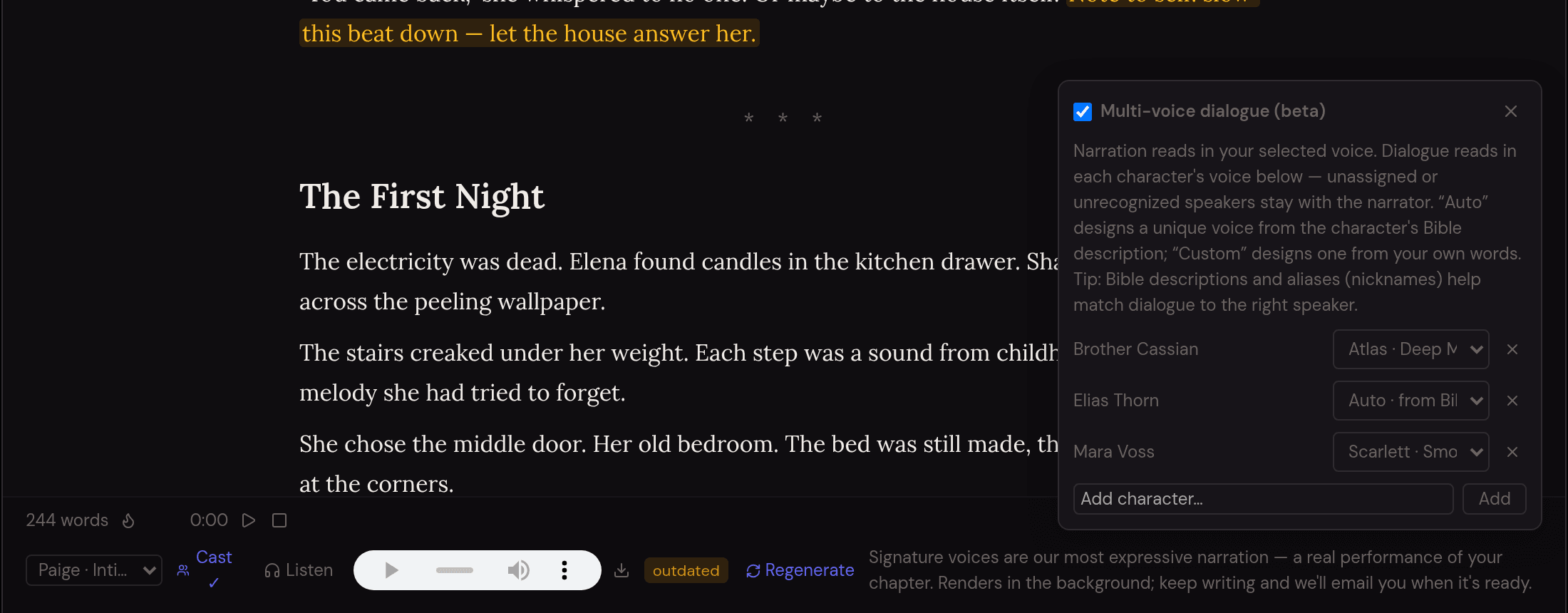
With multi-voice on, narration reads in your chosen voice and each character's quoted dialogue reads in a voice you assign: a full-cast production of your chapter. Paige figures out who speaks each line from your dialogue tags, action beats, and Story Bible, and also directs how each line is delivered based on the surrounding scene.
Each character can take a preset Signature voice, or two smarter options: Auto designs a unique voice from that character's Bible description, and Custom designs one from a sentence you write. Designed voices stay consistent across every chapter of the project.
- 1Open a chapter inside a project and pick a Signature narrator from the voice picker.
- 2Click Cast (the people icon next to the picker) and switch on Multi-voice dialogue.
- 3Your Story Bible characters appear automatically — assign each a voice, Auto, or Custom. Unassigned characters stay with the narrator.
- 4Hit Listen. Attribution, direction, and voice design all happen during the render.
Good to know
- *Voices connect by name: cast entries match Story Bible characters, so keep names consistent.
- *Add nicknames to a character’s aliases in the Bible — "Eli" and "Elias" then map to the same voice.
- *A rich Bible description does double duty: better speaker matching and a better Auto-designed voice.
Directing
Steer the performance from the page
There's no markup language to learn — the prose itself is the direction. Before rendering, a dialogue director reads the narration around every quote and turns it into a delivery instruction for the voice actor. Write “she hissed”, “his voice broke”, or “he said, flat and final” and the line comes out that way.
Pauses work the same way — from the structure you already write:
- A paragraph break gives a natural beat (about a second).
- A scene separator on its own line (
* * *,—,···) becomes a long held silence. The symbols are never read aloud. - Ellipses and em-dashes inside a sentence read as hesitation, the way you'd expect.
Good to know
- *Tags and action beats near a quote are the director’s script — "she whispered, not trusting her voice" beats "she said".
- *Lines with no emotional cues get neutral delivery on purpose. The director never invents drama your text doesn’t support.
- *Want a longer dramatic beat mid-scene? Drop in a separator line.
Author Notes
Margin notes that never get narrated
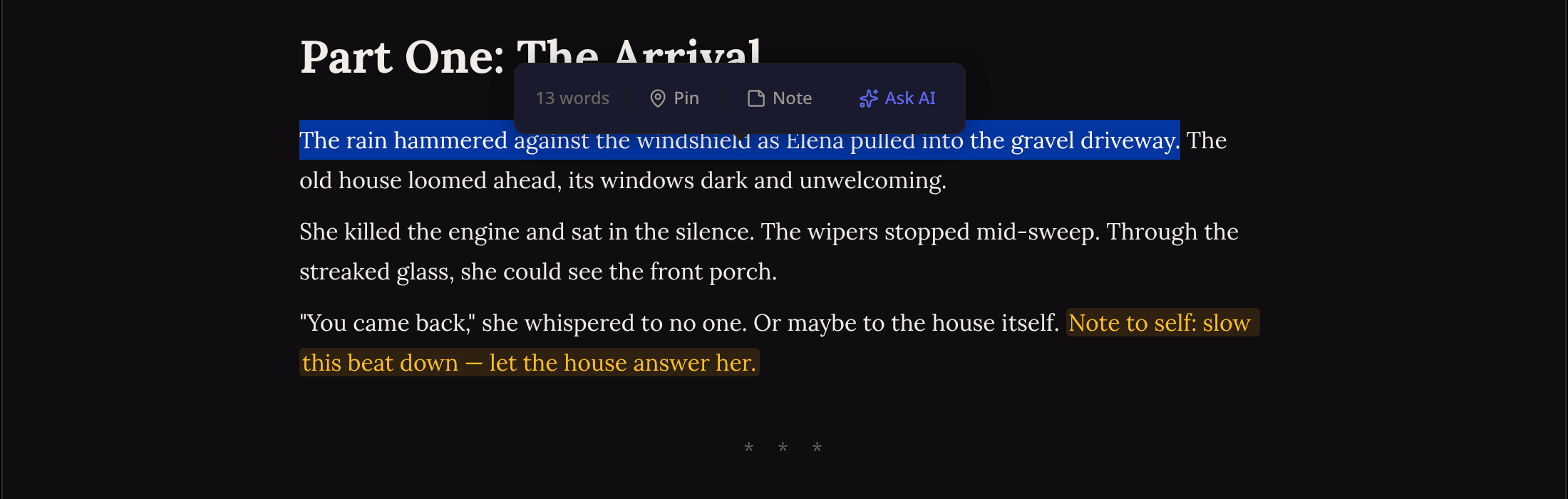
Select any text in the editor and click Note in the popup toolbar to turn it into a colored author note: a comment to yourself, right in the manuscript. Pick from five colors to build your own system (plot threads, fixes, research).
Notes are for you, not the book: they're excluded from narration, word counts, EPUB, and manuscript exports. Paige reads them as your margin instructions — write “foreshadow the betrayal here” next to a paragraph and she'll use it when she works on that scene. The same popup toolbar also shows a live word count for whatever you've selected.
Voice Samples
Hear every voice before you choose
Pick the right narrator by ear, not guesswork. Every voice below has a sample — listen before you render so you never waste a credit on a voice you haven't heard.
These same samples play in the workspace voice picker — hover any voice to preview it before choosing.
Instant Voices
Ready in seconds. Nine narrators for quick proofing-by-ear while you draft.
Heart · F
Warm, gentle female narrator — clear and comforting
Bella · F
Bright, youthful female voice with natural warmth
Nicole · F
Soft, whispery female narrator — intimate and quiet
Aoede · F
Melodic, lyrical female voice — smooth and musical
Fenrir · M
Deep, resonant male voice with gravitas
Puck · M
Playful, energetic male narrator — lively and quick
Michael · M
Calm, measured male voice — steady and reassuring
Emma · F UK
Crisp British female narrator — refined and elegant
Fable · M UK
Rich British male voice — storyteller warmth
Signature Voices
Full directed performances — delivery shifts with your scene's emotion. These render in the background over a few minutes.
Signature voices are temporarily unavailable. Instant voices still work.
Paige · Intimate F
Our flagship voice — intimate, expressive, nuanced. Reads like someone leaning close.
Bella · Warm F
Warm and inviting female narrator — like a friend telling a story
Nicole · Whisper F
Breathy, intimate female voice — barely above a whisper
Emma · British F
Elegant British female narrator — poised and articulate
Michael · Calm M
Deep, measured male voice — unhurried and thoughtful
Yuki · Anime F
Bright, energetic female voice — anime-inspired expressiveness
Atlas · Deep M
Deep, gravelly male narrator — like Morgan Freeman reading your story
Scarlett · Smoky F
Smoky, sultry female voice — dark and alluring
Finn · Young M
Young, energetic male voice — fresh and dynamic
Audiobook FAQ
Why don’t I see the Cast button?
Cast lives next to the voice picker and needs the chapter to be inside a project (multi-voice reads your project’s Story Bible to match speakers). Standalone chapters render single-voice.
How long does a Signature render take?
Minutes, not seconds: it’s a full performance, rendered in the background. Keep writing; we email you when the audio is ready. Instant voices finish in seconds.
A character’s lines came out in the narrator’s voice. Why?
The speaker wasn’t recognized for that line. Check the character’s name in the cast matches the Bible entry, add nicknames as aliases, and make sure nearby dialogue tags or action beats make the speaker clear. Ambiguous lines deliberately fall back to the narrator instead of guessing.
Do my author notes get read aloud?
Never. Author notes (colored comment text in the editor) are stripped before narration, along with exports and word counts. Write margin notes freely.
How long is my audio kept?
Your latest render for each chapter and voice sticks around until you regenerate it — reopen the chapter and the player comes right back. If you edit the chapter after rendering, the audio stays playable with an "outdated" tag and a one-click Regenerate. Download links (including the ones we email) expire after 7 days, so grab the MP3 or just reopen the chapter for a fresh link.
Something not covered here? Reply to any of our emails — a human reads them.
Ready to listen?
Open a chapter and press Listen — your first render takes seconds.