
How to use Muses (writing voices) in WriteWithPaige
A Muse is a writing voice Paige takes on, with its own personality, style and rules. Anyone can pick an official or community Muse from the chat, and you can blend two at once. Making your own Muse needs a paid plan.
5 min readUpdated

On this page
Step by step
Step 1: Open the Muse picker
On a computer, click the Muse chip beside Style and Skills in the message box. On a phone, tap the sliders button (“How Paige writes”) and then “Muse”. You can also open the chat’s ⋯ menu and choose “Muse”.
Step 2: Pick one or two
Tap a Muse to turn it on. Tap a second to blend them. The top reads “Blending” with both names.
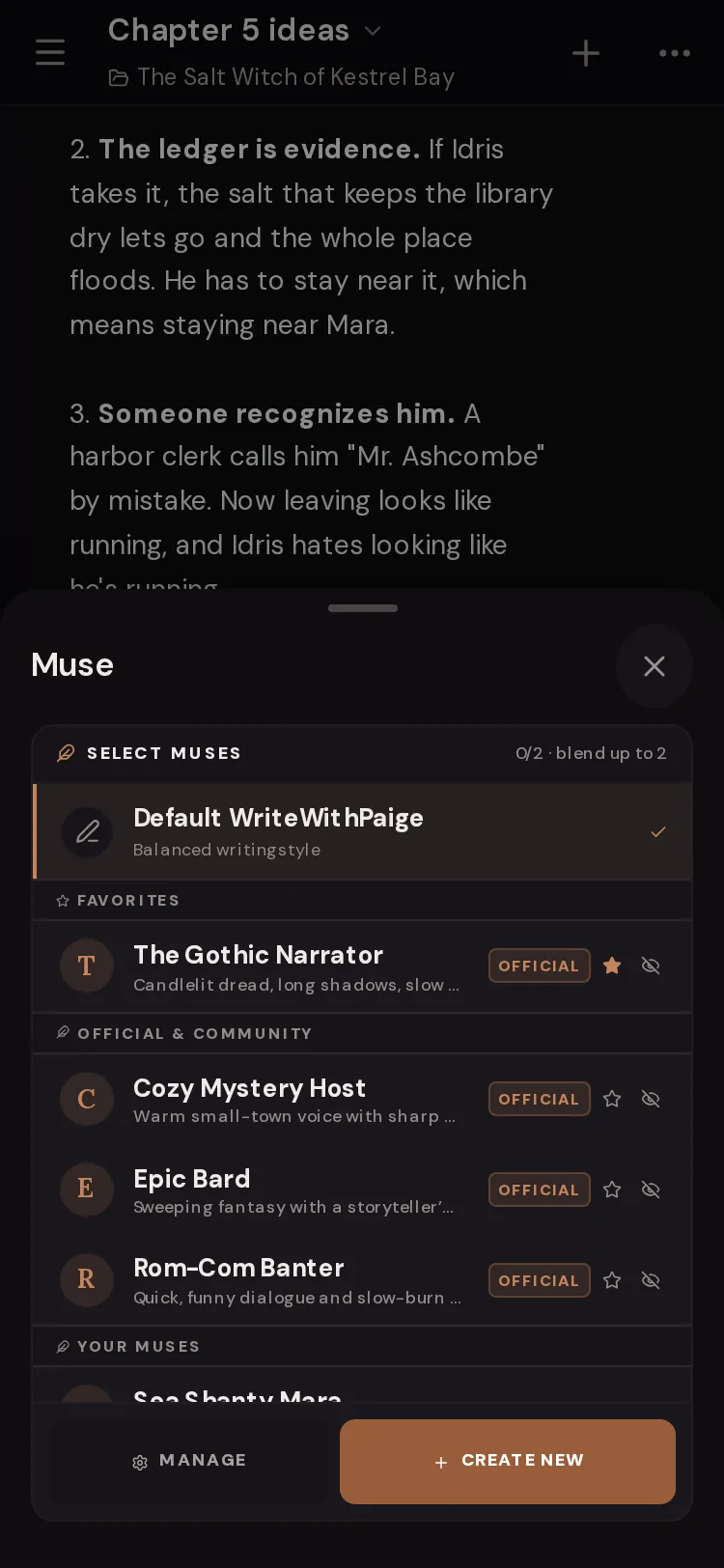
Step 3: Write as usual
Paige now writes in that voice. Your choice is saved for this project, so it is still on next time.
Step 4: Go back to normal
Open the picker and tap “Default WriteWithPaige” (“Balanced writing style”).
Step 5: Make your own (paid plans)
Tap “Create New” in the picker, or go to the Muses page and tap “New Muse”. Fill in the fields and tap “Create”.

What a Muse changes, and what it doesn’t
A Muse changes how Paige sounds: her personality, prose style, favourite genres and any custom rules you give it. It does not change your Story Bible, your memories or your chapters.
Your Style and Length settings still apply on top. Your banned phrases still apply, plus the Muse’s own forbidden words while it is on.
The picker, section by section
The picker is titled “Select Muses” and shows a counter like “1/2 · blend up to 2”.
- Default WriteWithPaige
- “Balanced writing style”. Turns all Muses off.
- Favorites
- Muses you starred. Tap the star on any Muse to add it.
- Official & Community
- Muses made by WriteWithPaige (marked “Official”) and Muses other writers shared (marked “Community”).
- Your Muses
- Muses you made and kept private.
- Hidden
- Muses you hid with the eye icon. Open it and tap the eye to bring one back.
- Manage
- Opens the Muses page.
- Create New
- Opens the Muse editor (paid plans).
Free and paid: who can do what
On the Free plan you can pick any Official or Community Muse from the chat picker and blend two of them.
Making, editing and using your own private Muses needs any paid plan (Plus, Pro, Ultra or Business). These show a crown and open the plans window on Free. On the Muses page, the “Use Muse” button also shows a crown on Free, so pick shared Muses from the chat picker instead.
If your paid plan ends, your own Muses stay saved. They unlock again when you upgrade.
The Muses page
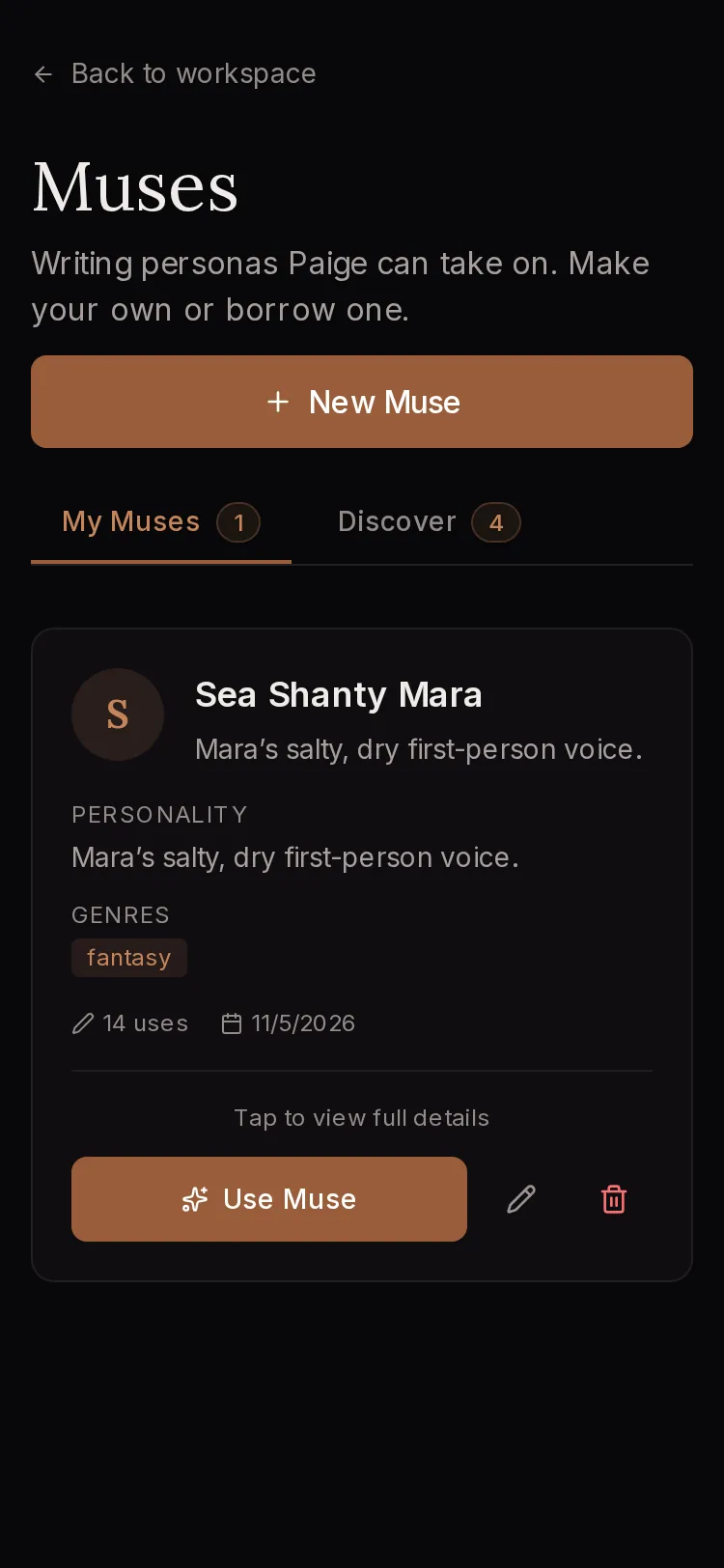
Open it from the picker (“Manage”), from the phone menu under Navigate, or at writewithpaige.com/muses. It says “Writing personas Paige can take on. Make your own or borrow one.”
- My Muses
- Muses you made. Each card has “Use Muse”, “Edit muse”, “Delete muse”, and “Copy public link” if it is public.
- Discover
- Every public Muse: official ones and ones other writers shared.
- Hidden Muses
- A folded list of Muses you hid. Tap “Restore” to bring one back.
- New Muse
- Opens the editor. If you have none yet, the button reads “Create Your First Muse”.
- Back to workspace
- Returns to your book.
Every field in the Muse editor
The editor is titled “Create Muse” (or “Edit Muse”). Only the name is required, but the more specific you are, the more the voice changes.
- Name
- Required. For example “Midnight Muse”.
- Start from a romance template
- New Muses only. “Pick a character archetype…” fills tagline, personality and writing style. Edit anything afterwards.
- Tagline
- A one-line description others will see.
- Personality
- Who this voice is, up to 500 characters. For example “Playful and teasing, loves to build tension”.
- Writing Style
- How it writes, up to 500 characters. Sentence length, imagery, focus.
- Genres
- Tap the genres it suits, such as Romance, Fantasy, Sci-Fi, Historical or Slow Burn.
- Make Public
- “Allow others to use this muse.” It appears in Discover and gets a shareable link.
- Custom Instructions
- Up to 5,000 characters. “Rules Paige follows whenever this muse is active, in every project.”
Try typing
“Personality: Dry, observant, quietly funny. Notices what people do with their hands.”
Concrete habits give a stronger voice than adjectives alone.
Try typing
“Writing Style: Short paragraphs. Close third person. One sharp sensory detail per beat. No purple prose.”
Try typing
“Custom Instructions: Never end a scene on dialogue. Cut adverbs in action beats. Keep chapters under 3,000 words.”
Delete or hide a Muse
To delete your own Muse, tap “Delete muse” on its card and confirm. This cannot be undone. Chats that used it keep working, without its personality.
To clear a Muse you don’t want from your lists without deleting anything, tap its eye icon (“Hide this muse”). Find it again under Hidden.
Questions
Can I use Muses on the Free plan?
Yes. Free writers can pick any Official or Community Muse in the chat picker and blend two. Creating your own Muse needs a paid plan.
Is the Muse saved per chat or per book?
Per project. Paige remembers which Muses you picked for each book and turns them on again when you come back.
Can I use more than two Muses?
No, two is the most. Picking a third replaces the first one you chose.
My Muse ignores a rule. What should I do?
Put hard rules in Custom Instructions, keep them short, and avoid rules that fight your Style setting. For a rule that should apply in every story, a Skill or a banned phrase can work better.
Does a Muse change my Story Bible?
No. A Muse only changes Paige’s voice. Your Bible, memories and chapters stay the same.
What are Brand Voices?
In a Brand workspace, Muses are called Brand Voices. They work the same way.
Related guides
Try it on your own story.
Start writing free