
How to use WriteWithPaige on a small phone like the iPhone mini
WriteWithPaige works fully on a phone: five tabs at the bottom, a chat box that folds its options into a small pill, and sheets for pictures and writing style. A few tools are desktop-only. Add it to your Home Screen to get notifications when Paige finishes.
6 min readUpdated

On this page
Step by step
Step 1: Add it to your Home Screen
In Safari, tap the Share button, then “Add to Home Screen”, then “Add”. Open WriteWithPaige from the new icon. It opens full screen, like an app.
Step 2: Learn the five tabs
“Chapters”, “Editor”, “Bible”, “Notes” and “Chat” sit at the bottom. Badges on “Editor” and “Bible” mean something is waiting for you.
Step 3: Write from the Chat tab
Type in the box at the bottom. The pill above it says what Paige will do. Tap the pill to change it.
Step 4: Use the + and ⚙ buttons
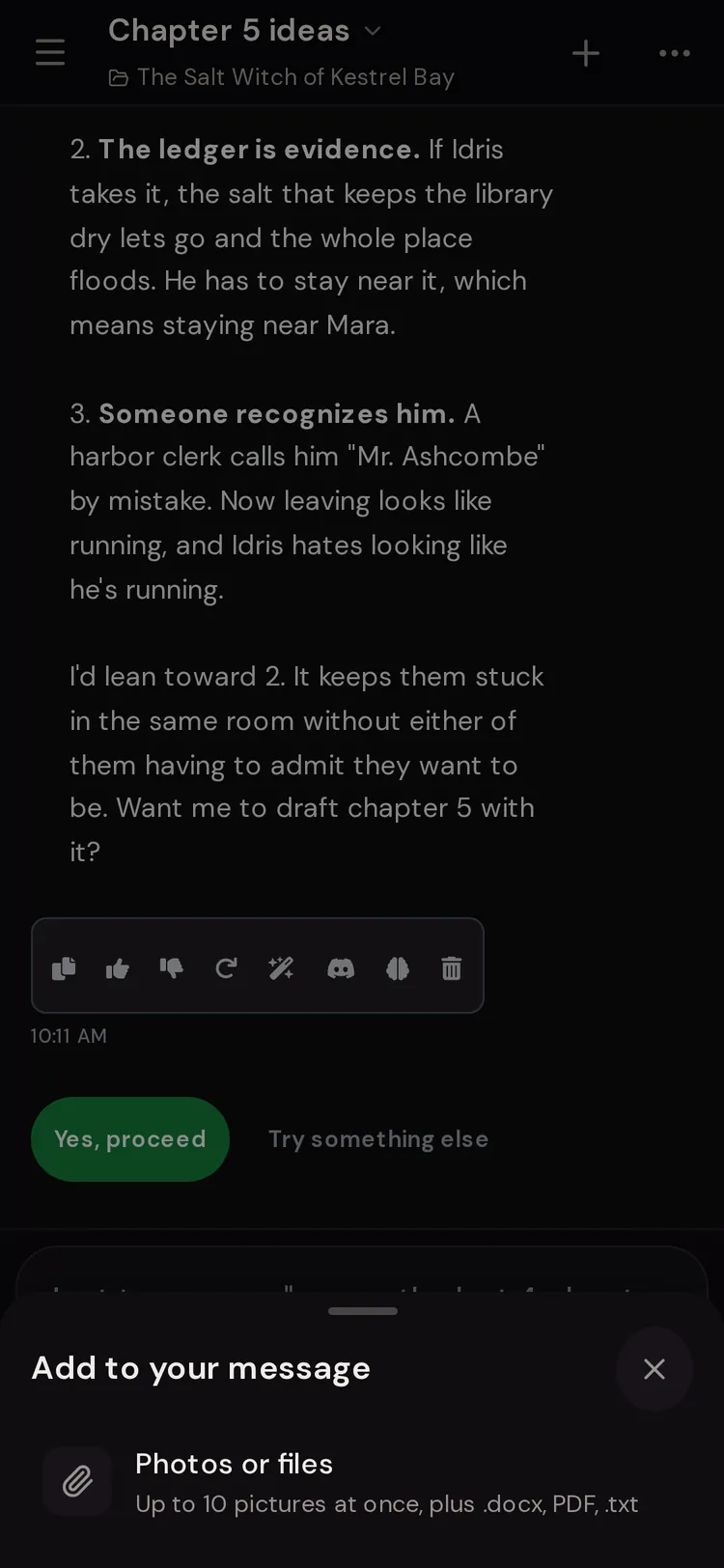
Tap “+” to add photos, files or a drawn picture. Tap ⚙ to change how Paige writes: style, length, Muse and skills.
Step 5: Review drafts with a swipe
When Paige drafts a change, a strip appears above the tabs. Swipe right to accept, left to dismiss, or tap the eye to preview first.
Step 6: Turn on notifications
Open “Open menu”, then “Settings”, and find Notifications. Tap “Turn on” so Paige can tell you when a long reply is ready.

The tabs, the header and the drawer
The bottom tabs are your main way around. The header at the top has three things: “Open menu” (the drawer), the project name (tap it to switch projects or open “Manage Projects (rename, export…)”), and “Search”.
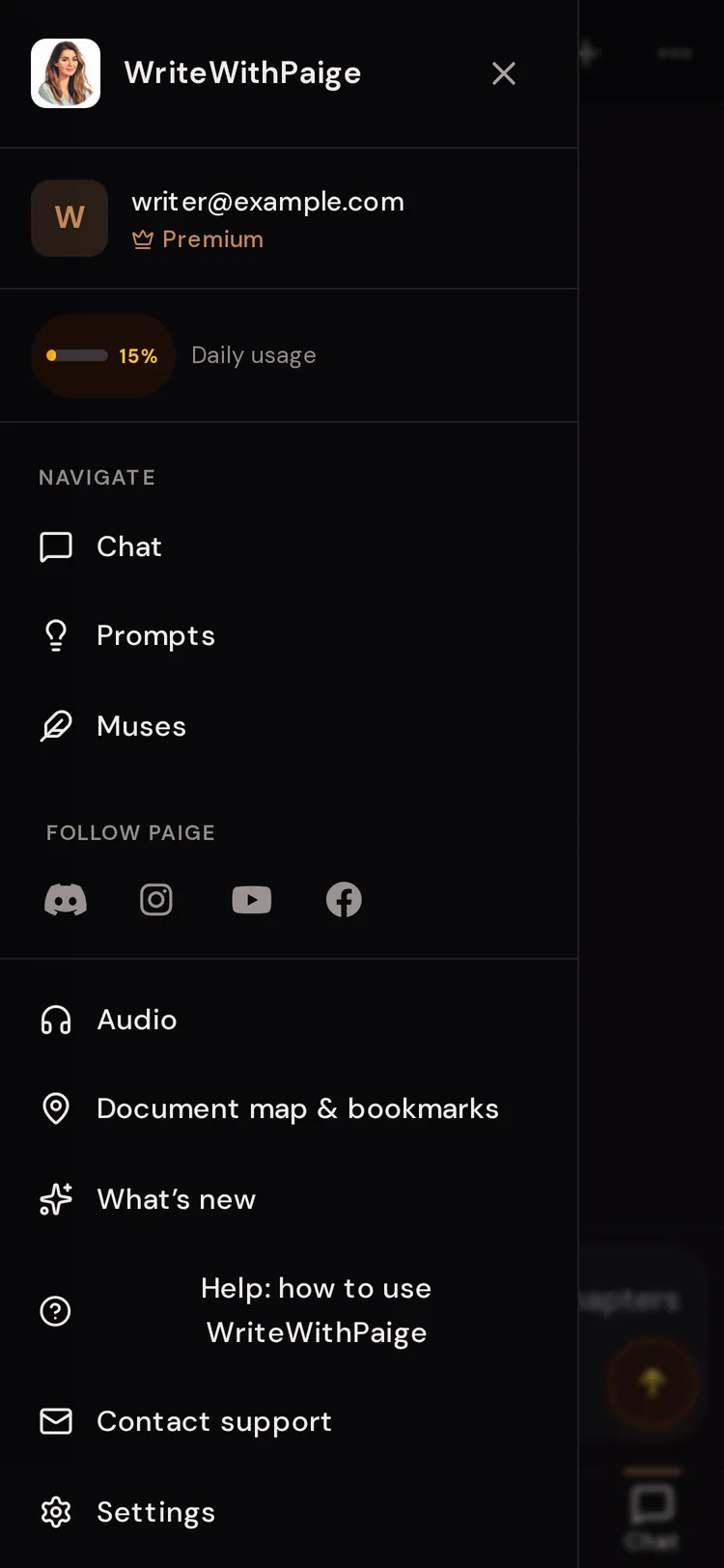
The drawer holds your “Daily usage” meter, links to “Chat”, “Prompts” and “Muses”, “Audio” and “Document map & bookmarks”, “What’s new”, help, “Contact support”, “Settings” and “Sign Out”.
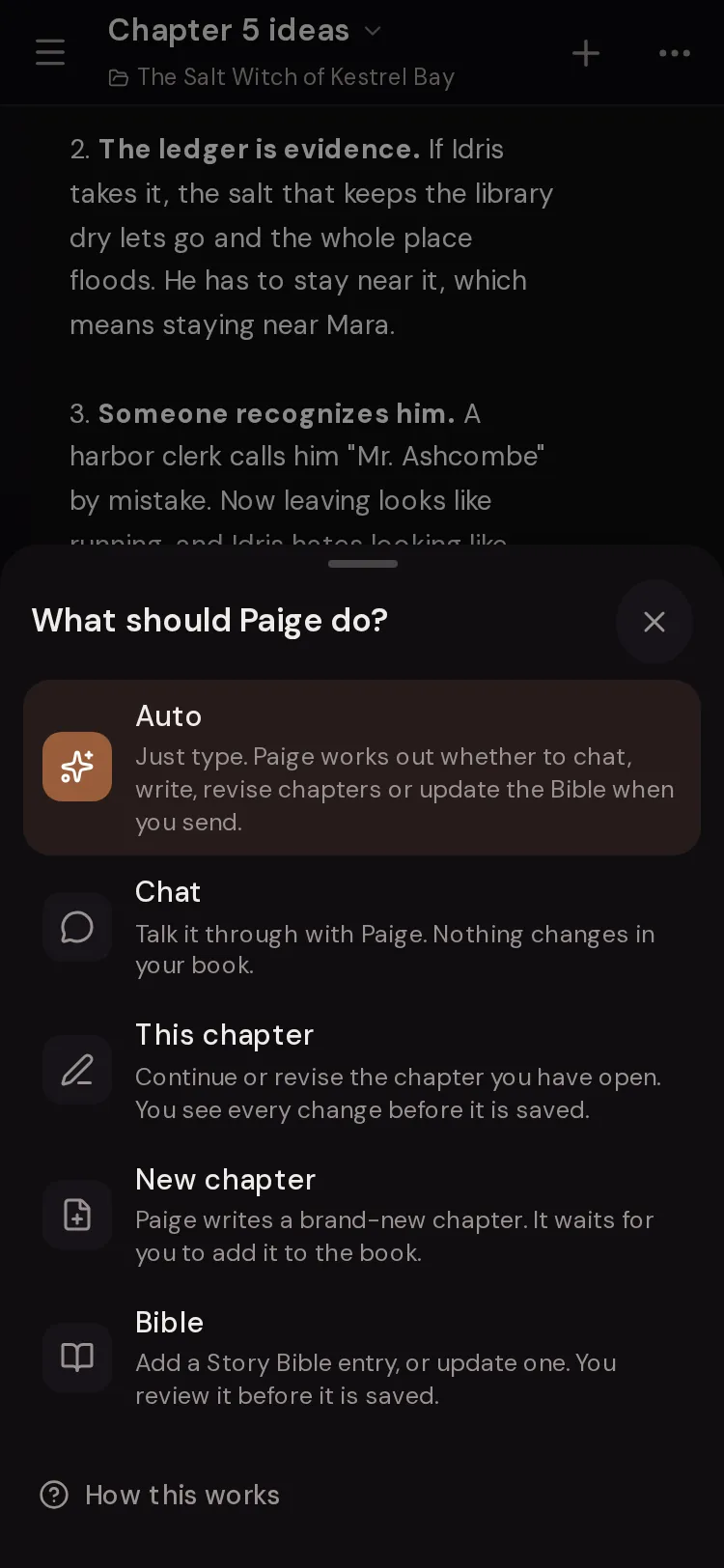
The action pill: what Paige will do
On a computer, the choices “Auto”, “Chat”, “This chapter”, “New chapter” and “Bible” sit in a row above the chat box. On a phone they fold into one small pill so the box keeps its room. The pill shows the current choice, such as “Auto”, “Continue · Ch 3” or “New Bible entry”.
Tap the pill and a sheet titled “What should Paige do?” opens. Pick a choice. For “This chapter” you also pick Continue or Revise and the chapter. For “Bible” you pick “Which entry” or “+ New entry”. The Send button then shows a short word: “Continue”, “Revise”, “Write” or “Save”.

The + sheet and the ⚙ sheet
The “+” button opens “Add to your message”. “Photos or files” attaches pictures, .docx, PDF or .txt files. “Draw a picture” asks Paige to draw something for you (it shows how many pictures you have left today). “Reference images” lets you pick pictures already in this project for Paige to look at.
The ⚙ button opens “How Paige writes”. Here you set the Style slider (“Lean” to “Lush”) and Length (“Short”, “Standard”, “Long”), pick a Muse, change “Writing with” (which model writes, on paid plans with credits), and switch skills on or off. While Paige is writing, the sheet says “You can change these when Paige finishes.”

Reading mode, voice typing and the editor toolbar
The phone editor toolbar shows bold, italic, strikethrough, colour, undo, redo, the microphone and “Reading mode: just the text”. Tap “More formatting” for headings, lists and alignment.
Reading mode hides every button so you can read the chapter like a book. It is the best way to read on a small screen. You can also open it from the ⋯ menu in the status bar.
Voice typing turns speech into text. Tap the microphone, speak, then tap again. It works in the editor and in the chat box. Voice typing is part of every paid plan. On Free, the microphone offers an upgrade.
Type while Paige writes: queueing
You don’t have to wait. While Paige is writing, the box says “Type your next line while Paige writes…”. Type your next message and the Send button becomes “Queue”. It sends by itself as soon as she finishes.
Up to three messages can wait in line. Each one uses a message from your daily allowance when it sends. Queued messages show above the box with “Resume”, “Clear” and an edit option. Edits to selected text can’t be queued: they send once Paige finishes, because the text may move.
Tap the square stop button to stop Paige mid-reply.
What is desktop-only
Almost everything works on a phone. These few tools need a wider screen.
- Files panel
- Use “Import a manuscript” from the empty chapter list or from search.
- Focus mode
- Use Reading mode to see just the text.
- Resizing the sidebar
- Not needed: each list fills the screen.
- Side chat next to a chapter
- Switch between the “Editor” and “Chat” tabs. Drafts still show as a strip on every tab.
- Keyboard shortcuts
- Use the buttons and sheets.
Home Screen and notifications
On iPhone, notifications only work once WriteWithPaige is on your Home Screen. In Safari tap Share, then “Add to Home Screen”, then “Add”. Open it from the icon, then go to “Settings” and tap “Turn on” under Notifications.
With notifications on, Paige tells you when a reply or chapter is ready, plus the odd reminder (never more than one a day, never at night). You can start a long chapter, lock your phone, and come back when it buzzes.
On Android, open the site in Chrome, tap the menu button, then “Add to Home screen” or “Install app”.
Questions
Is there an iPhone app in the App Store?
WriteWithPaige runs in your browser. Add it to your Home Screen and it opens full screen like an app, with notifications. See the install guide for details.
The chat box covers my chapter. How do I see both?
On a phone, switch between the “Editor” and “Chat” tabs. Drafts from Paige show as a strip above the tabs, so you won’t miss them.
Where did the action buttons go?
On a phone they fold into the small pill above the chat box. Tap it to pick “Auto”, “Chat”, “This chapter”, “New chapter” or “Bible”.
My chapter list looks out of date.
Pull down from the top of the Chapters list to refresh it.
Why can’t I turn on notifications on my iPhone?
iPhone only allows them for sites on your Home Screen. Add WriteWithPaige to your Home Screen, open it from there, then turn notifications on in Settings.
Can I use Focus mode on my phone?
Focus mode is a desktop feature. On a phone, use Reading mode from the editor toolbar or the ⋯ menu to see just the text.
Related guides
Try it on your own story.
Start writing free