
A tour of the WriteWithPaige workspace on desktop and phone
On a computer, the workspace has a rail of icons on the left, a sidebar with your lists, tabs and an editor in the middle, and an optional side chat on the right. On a phone, five tabs at the bottom (Chapters, Editor, Bible, Notes, Chat) do the same job. This tour covers every area and every keyboard shortcut.
7 min readUpdated

On this page
Step by step
Step 1: Open a list from the rail
On desktop, click an icon in the left rail, such as “Chapters” or “Bible”. Its list opens in the sidebar next to it.
Step 2: Open an item as a tab
Click a chapter, Bible entry or note. It opens as a tab in the middle, in the editor.
Step 3: Talk to Paige beside your page
Click “Side chat” in the rail (or press ⌘J on Mac, Ctrl+J on Windows) to open the chat on the right while your chapter stays open.
Step 4: Make room to write
Press ⌘\ or Ctrl+\ to hide the sidebar, or click “Focus” under the chapter to hide everything but the page.
Step 5: On a phone, use the bottom tabs
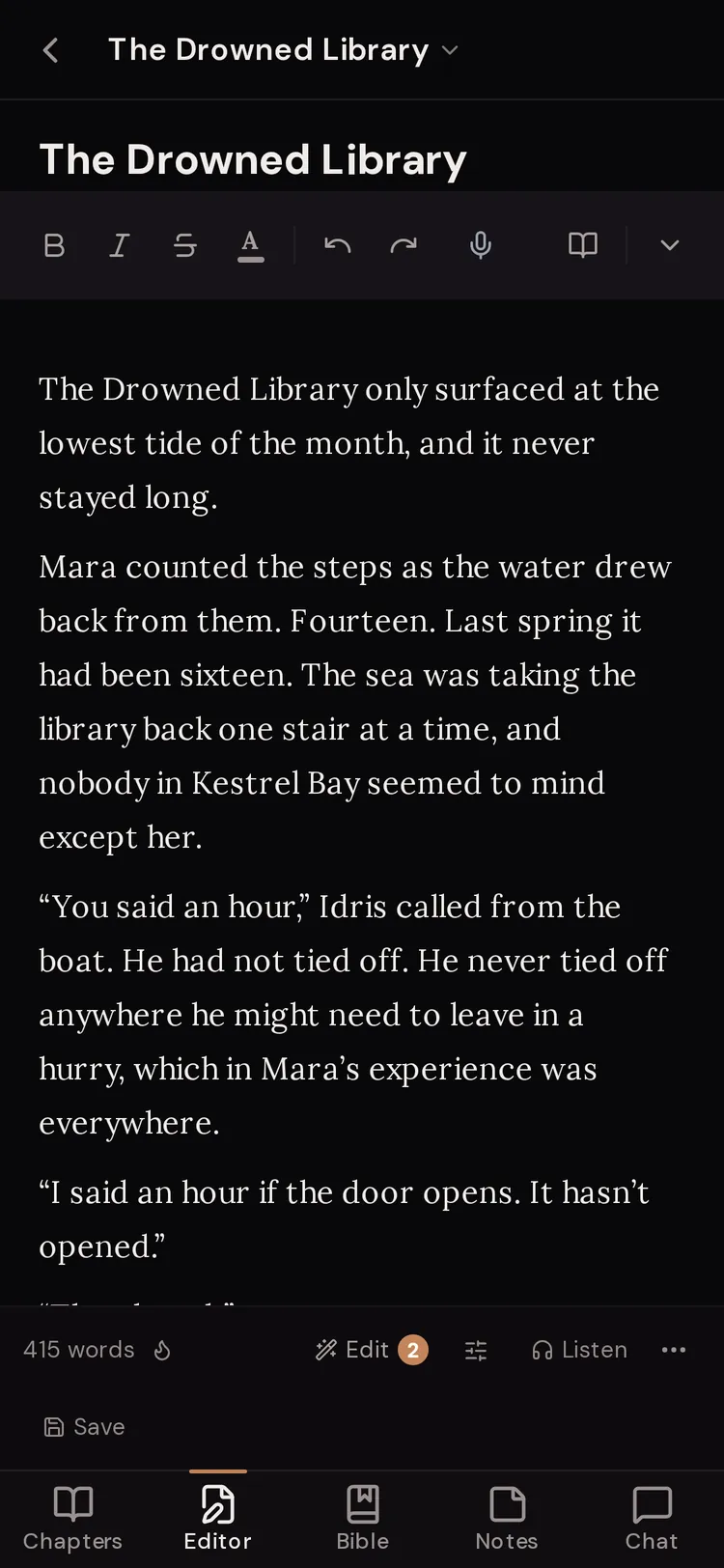
Tap “Chapters”, “Editor”, “Bible”, “Notes” or “Chat”. Tap “Open menu” (top left) for everything else.
The desktop layout at a glance
Desktop means a screen wider than 768 pixels: most laptops, computers and tablets held sideways. From left to right you have the activity rail (a column of icons), the sidebar (the list for whichever icon you picked), the tab bar and editor, and the side chat.
Your layout is remembered on that browser: open tabs, panel widths and the editor font come back the next time you open the workspace.
Every item in the activity rail
Hover over any icon to see a short hint. Some items only appear in certain projects.
- “Projects”
- Switch, create, rename and organise projects, and change project settings such as Story language, genre and tone.
- “Chapters”
- Your chapter list, with folders, sorting, locking and the whole-book continuity check. In Brand projects it is called “Documents”.
- “Bible”
- The Story Bible: characters, places, rules and plot arcs Paige reads before she writes. A dot on it means Paige noticed something new. In Brand projects it is the Brand Bible.
- “Briefs”
- Brand projects only. Campaign briefs with goal, audience, channels and results.
- “Notes”
- Your own notes, with tags, uploads and search.
- “Files”
- Files you uploaded, which can be split into chapters. Desktop only.
- “Audio”
- Appears once the project has audiobook audio. Player, speed and downloads.
- “Map”
- Document Map & Bookmarks: the headings, scene breaks and bookmarks in the open chapter. Click one to jump there.
- “Search”
- Search chapters, the Bible, notes and chats.
- “Settings”
- Appearance, writing goals, memory, AI settings, subscription and your data.
- “Chat”
- Opens the chat as a full tab in the middle.
- “Sidebar”
- Shows or hides the sidebar.
- “Side chat”
- Shows or hides the chat panel on the right (its header reads “AI Chat”).
- “Adventures”
- Goes to interactive adventures you play with Paige.
- “Read”
- Writing projects only. Opens stories to read.
- “Help”
- Short help topics, links to this guide and the FAQ, and an email address for support.
The editor and its status bar
The editor is where you write. The toolbar at the top has fonts and text size (“Aa”), bold, italic, headings, quotes, lists, voice typing, undo and redo. Select text and a small toolbar appears with “Pin”, “Note”, “Ask AI” and “Visualize”.
The status bar under the page shows the word count and your writing streak, plus “Edit” (Edit Mode for line edits and reports), the audiobook button, “Focus”, a ⋯ menu (“Reading mode”, “Copy as Markdown”, “Export this chapter”, “Version history”, “What’s new”, “Start a sprint timer”) and the save button.

The side chat and the chat tab
You can talk to Paige in two places on desktop. The side chat sits on the right so you can watch a chapter while she works on it. The “Chat” rail item opens the same chat as a full tab when you want more room.
Press ⌘J (Mac) or Ctrl+J (Windows) to open or close the side chat. Its top bar shows the chat name (click it for chat history), the project, the Muse, and “New chat”. The ⋯ menu holds “Muse”, “Rename chat”, “Save as note”, “Pictures”, “Chat history” and how many Story Bible entries are connected.

The phone layout
On a screen 768 pixels wide or less, the workspace switches to a phone layout. There is no rail and no sidebar. Instead you get five tabs along the bottom.
- “Chapters”
- Your chapter list. Pull down to refresh it.
- “Editor”
- The chapter, entry or note you have open. A badge means a draft from Paige is waiting.
- “Bible”
- The Story Bible. A badge means Paige noticed something.
- “Notes”
- Your notes.
- “Chat”
- The chat with Paige, with the action pill and chat box.
- “Open menu” (top left)
- Opens the side drawer.
- Project name (top)
- Switch projects, “Manage Projects (rename, export…)” or “New Project”.
- “Search” (top right)
- Search everything in the project.
What is in the phone drawer
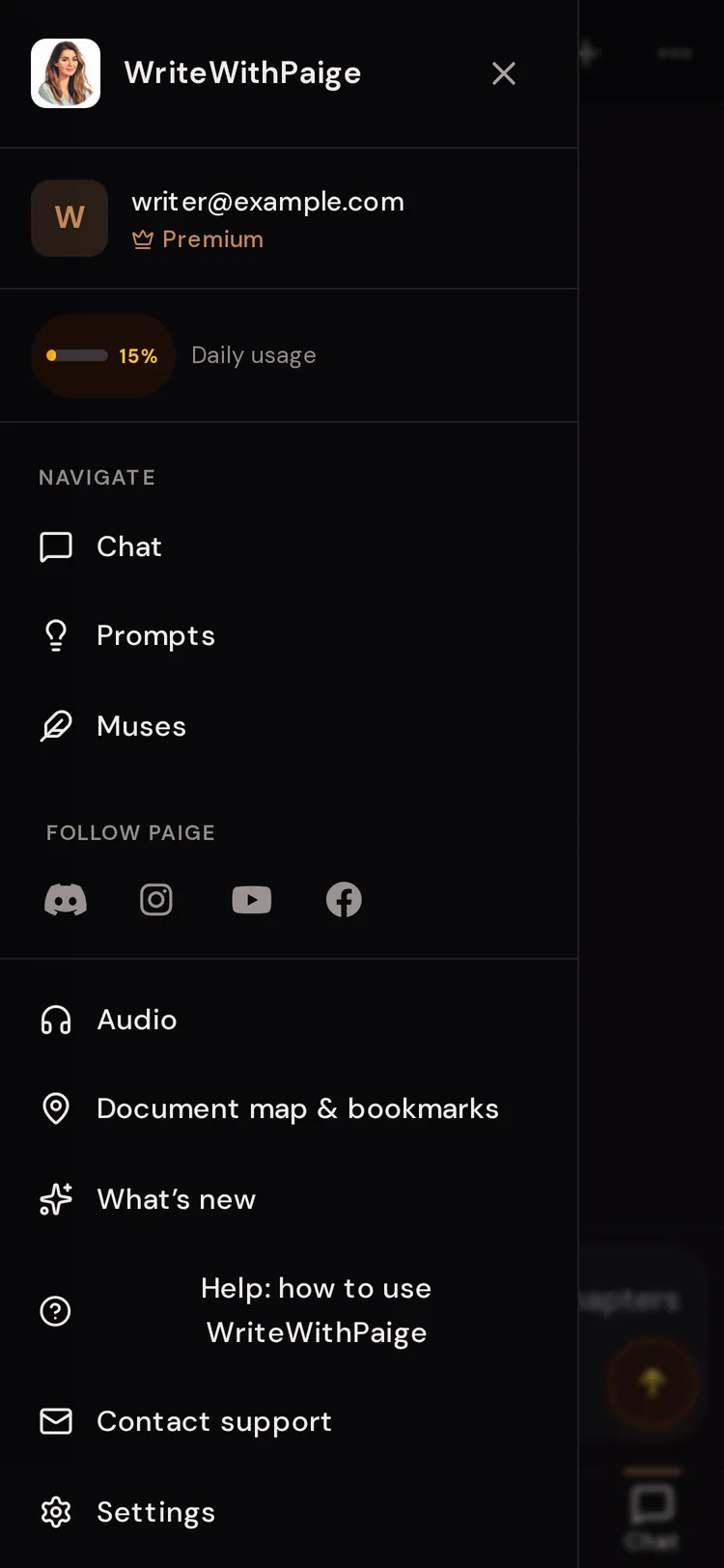
Tap “Open menu” at the top left. The drawer holds everything that doesn’t fit in the tabs.
- “Daily usage”: how much of today’s writing you have used.
- “Navigate”: “Chat” (the chat page outside a project), “Prompts” (story prompt ideas) and “Muses”.
- “Follow Paige”: social links.
- “Audio” (once the project has audio) and “Document map & bookmarks”.
- “What’s new”, “Help: how to use WriteWithPaige” and “Contact support”.
- “Settings” and “Sign Out”.
Keyboard shortcuts
These work on desktop. On Mac use ⌘ (Command). On Windows and Linux use Ctrl.
- ⌘K / Ctrl+K
- Open the search palette (search chapters, Bible, notes and chats, or run “Import a manuscript”).
- ⌘J / Ctrl+J
- Show or hide the side chat.
- ⌘\ / Ctrl+\
- Show or hide the sidebar.
- ⌘S / Ctrl+S
- Save the chapter, Bible entry or note you are editing (it also saves by itself).
- ⌘B / Ctrl+B
- Bold.
- ⌘I / Ctrl+I
- Italic.
- ⌘Z / Ctrl+Z
- Undo.
- ⌘⇧Z or Ctrl+Y
- Redo.
- Enter
- Send your message to Paige.
- Shift+Enter
- New line in your message without sending.
- Esc
- Leave Focus mode, Reading mode or the full-screen chat box, or close a popup.
- ← / → on a tab
- Move to the previous or next tab.
- Delete on a tab
- Close that tab.
Questions
Why do I see bottom tabs on my tablet?
The phone layout kicks in at 768 pixels wide or less. Turn the tablet sideways, or widen the browser window, to get the desktop layout.
I closed the sidebar. How do I get it back?
Click “Sidebar” in the rail, click any list icon such as “Chapters”, or press ⌘\ (Mac) or Ctrl+\ (Windows).
Where is the chat on desktop?
Click “Side chat” in the rail or press ⌘J / Ctrl+J for the right-hand panel. Click “Chat” in the rail to open it as a full tab.
Where is the Files panel on my phone?
Phones have no Files panel. To bring in a manuscript, use “Import a manuscript” from the empty chapter list or from search.
Is there a list of shortcuts inside the app?
Not yet. The table on this page lists every one.
What does the dot on “Bible” mean?
Paige noticed something in your chapters that may belong in the Story Bible, such as a new character. Open the Bible to see the “Paige noticed” cards.
Related guides
Try it on your own story.
Start writing free