
How to tell Paige what to do: the action bar explained
Above the chat box is the action bar, “What should Paige do?”. Leave it on Auto and just type, or pick Chat, This chapter, New chapter or Bible to be exact. Paige can work across several chapters and your Story Bible, but every change arrives as a draft you approve.
6 min readUpdated

On this page
Step by step
Step 1: Start on Auto
The bar starts on “Auto”. Just type what you want in your own words and send. Paige works out whether to chat, write, revise or update the Bible.
Step 2: Pick a choice to be exact
Tap “Chat” to talk only, “This chapter” to continue or revise one chapter, “New chapter” for a fresh chapter, or “Bible” for an entry.
Step 3: Choose the target
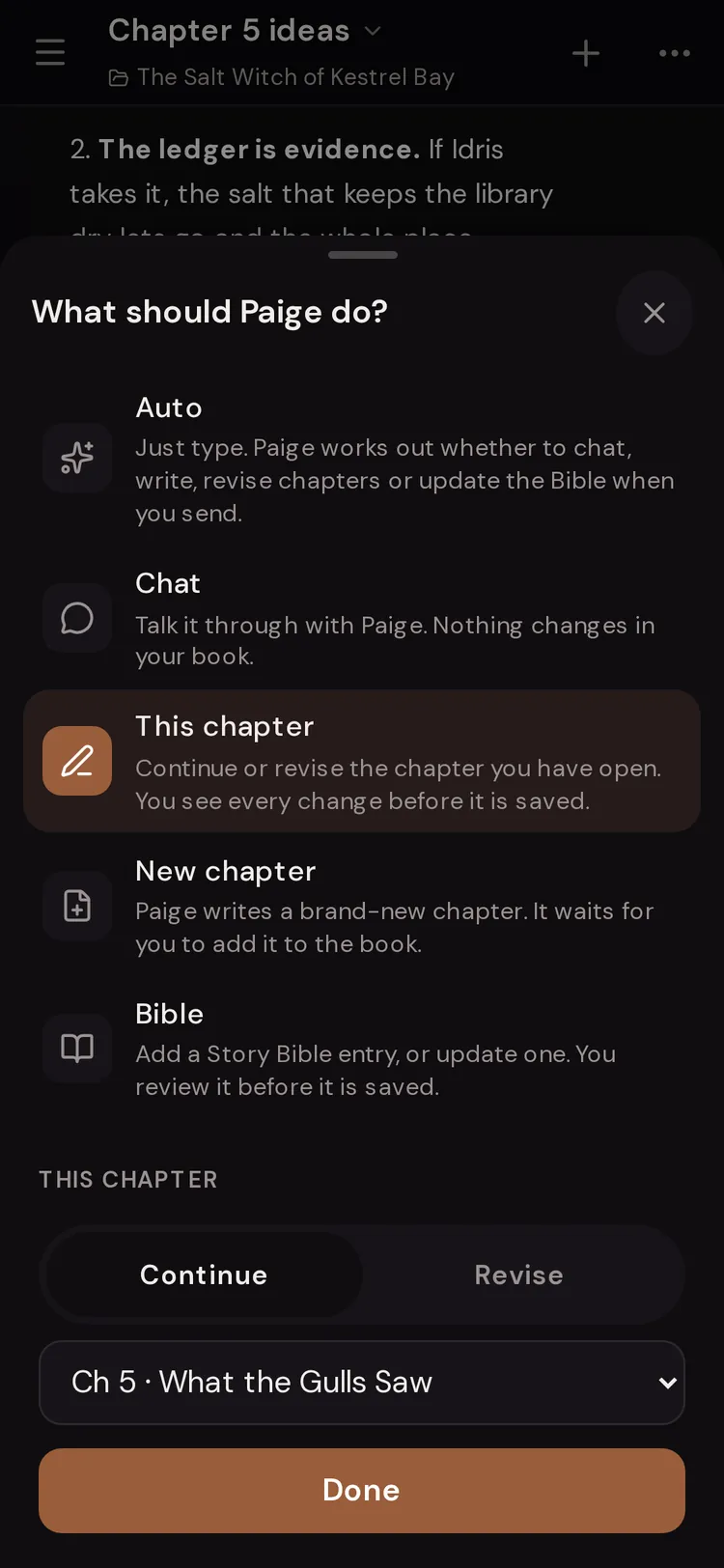
For “This chapter”, flip the switch to “Continue” or “Revise” and pick the chapter. For “Bible”, pick an entry or “+ New entry”.
Step 4: Check the Send button
It says what will happen: “Continue Ch 3”, “Revise Ch 3”, “Write chapter”, “New entry” or “Update” plus the entry name.
Step 5: Review the draft
Chapter and Bible changes arrive as drafts. Preview, then “Accept” or “Dismiss”.
The five choices
Hover over a choice on desktop to see its hint. Each one sets what Paige does with your next message.
- “Auto”
- Just type. Paige works out whether to chat, write, revise chapters or update the Bible when you send.
- “Chat”
- Talk it through with Paige. Nothing changes in your book. Stays on until you pick Auto.
- “This chapter”
- Continue or revise the chapter you have open. You see every change before it is saved. Stays on until you pick Auto.
- “New chapter”
- Paige writes a brand-new chapter. It waits for you to add it to the book. One chapter per press.
- “Bible”
- Add a Story Bible entry, or update one. You review it before it is saved. Stays on until you pick Auto.
This chapter: Continue or Revise
“Continue”: Paige writes what happens next, at the end of the chapter. Leave the box empty and send, and she keeps going.
“Revise”: Paige changes only what you ask. Select text in the editor first to limit the change to that passage.
The chapter dropdown lists every chapter as “Ch 1 · title”. It starts on the chapter you have open (or the last chapter). “This chapter” is greyed out until the book has a chapter, with the note “Write a first chapter to use this.”
Try typing
“(empty box, Continue)”
Paige keeps going from the last line.
Try typing
“Idris arrives at the door soaked and refuses to say where he’s been. End on Mara letting him in.”
Continue with a direction.
Try typing
“Make the argument angrier and cut the flashback to the shipwreck.”
Revise the whole chapter.
Try typing
“Tighten this and give Old Wren one line of dry humour.”
Revise with a passage selected in the editor.
New chapter and Bible
“New chapter” writes one fresh chapter at the end of your book. It waits as a draft until you tap “Create”. The bar then goes back to what it was before, so a follow-up such as “make it longer” doesn’t start a second new chapter.
“Bible” adds or updates a Story Bible entry. Pick an existing entry (“Update: Mara Vell”) or “+ New entry”. Describe the character, place or thing in plain words.
Try typing
“Chapter 6: the library flood. Mara has to choose between the ledger and Wren.”
New chapter.
Try typing
“The harbourmaster: 50s, ex-smuggler, owes Idris a favour, hates gulls.”
Bible, “+ New entry”.
Try typing
“She now knows the salt price is rigged. Add that and remove “trusts the council”.”
Bible, update an existing entry.
Which choices stay on
“Chat”, “This chapter” and “Bible” stay on after you send, with the chapter or entry you picked, until you choose “Auto” again. That makes a run of revisions on one chapter quick.
“New chapter” is one press, one chapter. A revision of selected text (“Ask AI”) is also one-shot. After either, the bar goes back to the choice you had before.
If a choice was left on from earlier and your next message plainly asks for something else, Paige follows the message.
How Auto decides
When you send on “Auto”, Paige reads your message alongside your chapter list and Story Bible and picks the right job. A question or brainstorm gets a chat reply. “Write the next chapter” becomes a new chapter draft. Naming chapters (“fix the timeline in chapters 5 to 8”) becomes revisions to those chapters. New facts about a character can become a Bible update.
Auto is the best choice for most writers most of the time. Use the other buttons when you want to be sure, for example when a request could mean either chat or a rewrite.
Try typing
“Sweep the last four chapters for repeated phrases and fix them.”
Auto: revisions across several chapters, each as its own draft.
Try typing
“Update Mara and Idris now that they’ve kissed.”
Auto: two Bible updates.
Try typing
“Is chapter 3 too slow? Don’t change anything yet.”
Auto: a chat reply only.
Paige works across your book, and you approve every change
Older guides talked about an “Agentic Mode” switch. That switch is gone. Paige can now always work across several chapters and your Story Bible in one turn: reading chapters, revising them, writing new ones and updating entries.
Nothing she does is saved straight away. Every chapter and Bible change arrives as a draft with the before and after. You accept all of it, part of it, or none. Locked chapters and locked entries are never changed.
On a phone, and the "How this works" tour
On a phone the bar folds into a pill above the chat box, such as “Auto” or “Revise · Ch 3”. Tap it to open the “What should Paige do?” sheet with the same choices, plus the Continue/Revise switch, the chapter picker and “Which entry”.
On desktop, the “How this works” (?) button at the end of the bar replays a short tour of the action bar.

Questions
Where is Agentic Mode?
It no longer exists as a switch. Paige can always work across chapters and the Story Bible, and every change still arrives as a draft for you to approve.
Why is “This chapter” greyed out?
Your book has no chapters yet. Use “New chapter” or Auto to write the first one.
Why did Paige write a new chapter when I wanted a chat?
Auto read your message as a request to write. Pick “Chat” first when you only want to talk. Dismiss the draft and nothing changes.
Can Paige revise several chapters at once?
Yes. On Auto, name the chapters, for example “fix the timeline in chapters 5 to 8”. Each chapter’s changes arrive as their own draft.
What happens if I press Send with an empty box on Continue?
Paige keeps writing from where the chapter ends.
Does the choice reset after each message?
Chat, This chapter and Bible stay on until you pick Auto. New chapter and selected-text revisions are one-shot.
Related guides
Try it on your own story.
Start writing free