
How to install the WriteWithPaige app on Android, iPhone and computer
On Android, download the app from writewithpaige.com/android. On iPhone or iPad, open WriteWithPaige in Safari, tap the Share button and choose “Add to Home Screen”. On a computer, install it from your browser. Installing gives you an app icon and lets Paige notify you when a long reply is ready.
5 min readUpdated

On this page
Step by step
Step 1: Android: download the app
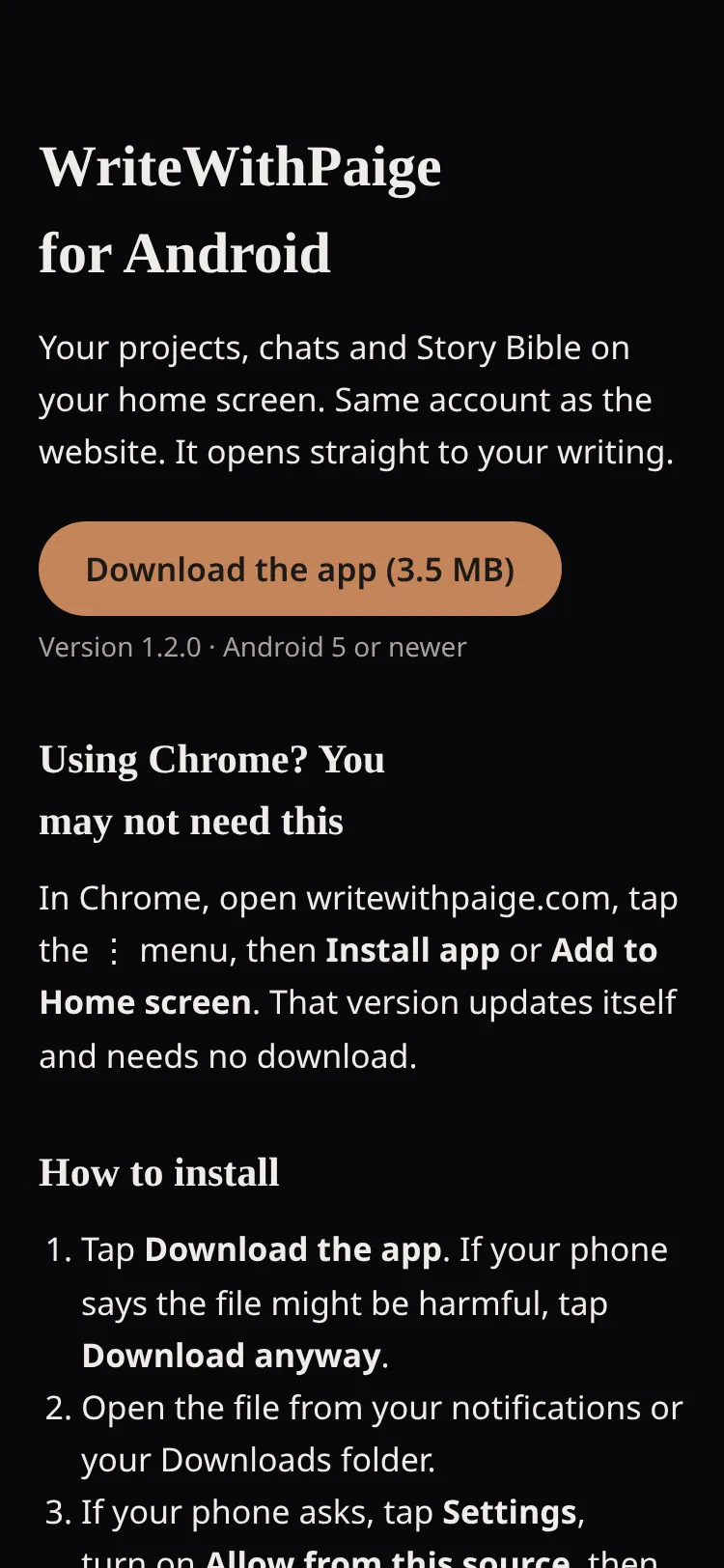
Open writewithpaige.com/android on your phone and tap “Download the app”. If your phone says the file might be harmful, tap “Download anyway”. Open the file, allow installs from this source if asked, tap “Install”, then “Open”, and sign in.
Step 2: iPhone or iPad: add it to your Home Screen
Open writewithpaige.com in Safari. Tap the Share button (the square with an arrow at the bottom of Safari), scroll and tap “Add to Home Screen”, then tap “Add” in the top right.
Step 3: Computer: install from your browser
In Chrome or Edge, open writewithpaige.com and look for the install icon at the right end of the address bar, or open the browser menu and choose the install option. WriteWithPaige then opens in its own window.
Step 4: Open it from the icon and sign in
Always open WriteWithPaige from the new icon. It uses the same account as the website, so your projects, chats and Story Bible are all there.
Step 5: Turn on notifications
Open Settings, find “Notifications” and tap “Turn on”. Allow notifications when your phone or browser asks.
The Android app
The Android app puts your projects, chats and Story Bible on your home screen. It is the same account as the website and opens straight to your writing. Get it only from writewithpaige.com/android.
- 1
- Tap “Download the app”. If your phone says the file might be harmful, tap “Download anyway”.
- 2
- Open the file from your notifications or your Downloads folder.
- 3
- If your phone asks, tap “Settings”, turn on “Allow from this source”, then go back.
- 4
- Tap “Install”, then “Open”, and sign in.
- 5
- Allow notifications when asked. That is how you hear when Paige finishes a long chapter.
Why the Android app is not on Google Play
You get the app straight from WriteWithPaige instead of Google Play. Android shows the “might be harmful” and “Allow from this source” warnings for any app that does not come from Google Play. They are normal for this kind of install.
New features reach you without reinstalling. When the app itself has an update, you get a notification. Tap it to install.
iPhone and iPad: Add to Home Screen
There is no App Store app. Instead you add the website to your Home Screen, and it opens full screen like an app.
It has to be Safari. Open writewithpaige.com, tap the Share button at the bottom, scroll and tap “Add to Home Screen”, then tap “Add”. The icon appears on your Home Screen.
WriteWithPaige may also show a “Get the Full Experience” banner on your phone with “Install App”, “Not Now” and “Don’t ask again”. “Install App” walks you through the same steps.
On a computer
You don’t need to install anything on a computer. The website works in any modern browser. Installing just gives WriteWithPaige its own window and a dock or taskbar icon.
In Chrome or Edge, use the install icon in the address bar or the install option in the browser menu. To remove it later, open the installed app’s menu and choose uninstall. Your writing stays in your account either way.
Want Paige next to other writing sites? See the Chrome extension guide.
Notifications: what you get
Open Settings and find “Notifications”. Tap “Turn on” or “Turn off”. Notifications are set per device, so turn them on on each phone or computer you use.
When they are on, Paige tells you when a reply or chapter is ready while you are away, plus the odd reminder: never more than one a day, and never at night.
- “Turn on”
- Notifications are off on this device. Tap to switch them on.
- “Turn off”
- They are on for this device. Tap to stop them.
- “Blocked in your browser settings”
- You said no earlier. Allow notifications for writewithpaige.com in your browser or phone settings, then come back.
- “On iPhone, add WriteWithPaige to your Home Screen first”
- Add it to your Home Screen, open it from there, then tap “Turn on”.
- “This browser doesn’t support notifications.”
- Try another browser, or the app.
"Notify me" while Paige writes
Long chapters take a while. When a reply is taking time, Paige may ask “Paige is still writing. Want a notification when she’s done?”. Tap “Notify me” and you can leave the app. You get a notification when she finishes.
If you keep a writing streak, you may also be offered an evening nudge when your streak is about to lapse (“Remind me”). Tap “No thanks” to skip any of these.
Questions
Is there an iPhone app in the App Store?
No. On iPhone and iPad you add WriteWithPaige to your Home Screen from Safari. It opens full screen like an app and can send notifications.
Is the Android download safe? My phone warned me.
The warning appears for any app that does not come from Google Play. Only download the app from writewithpaige.com/android.
Do I need a separate account for the app?
No. The app uses the same account as the website. Sign in and all your projects are there.
Why am I not getting notifications on iPhone?
iPhone only allows them when WriteWithPaige is opened from the Home Screen icon. Add it to your Home Screen, open it from there, then go to Settings, “Notifications” and tap “Turn on”.
Will I get lots of notifications?
No. You hear when a reply or chapter is ready, plus at most one reminder a day, never at night. Tap “Turn off” in Settings to stop them.
How do I update the Android app?
Most new features arrive without reinstalling. When the app itself has an update, you get a notification. Tap it to install.
Related guides
Try it on your own story.
Start writing free