
How to chat with Paige: messages, rewrites and chat history
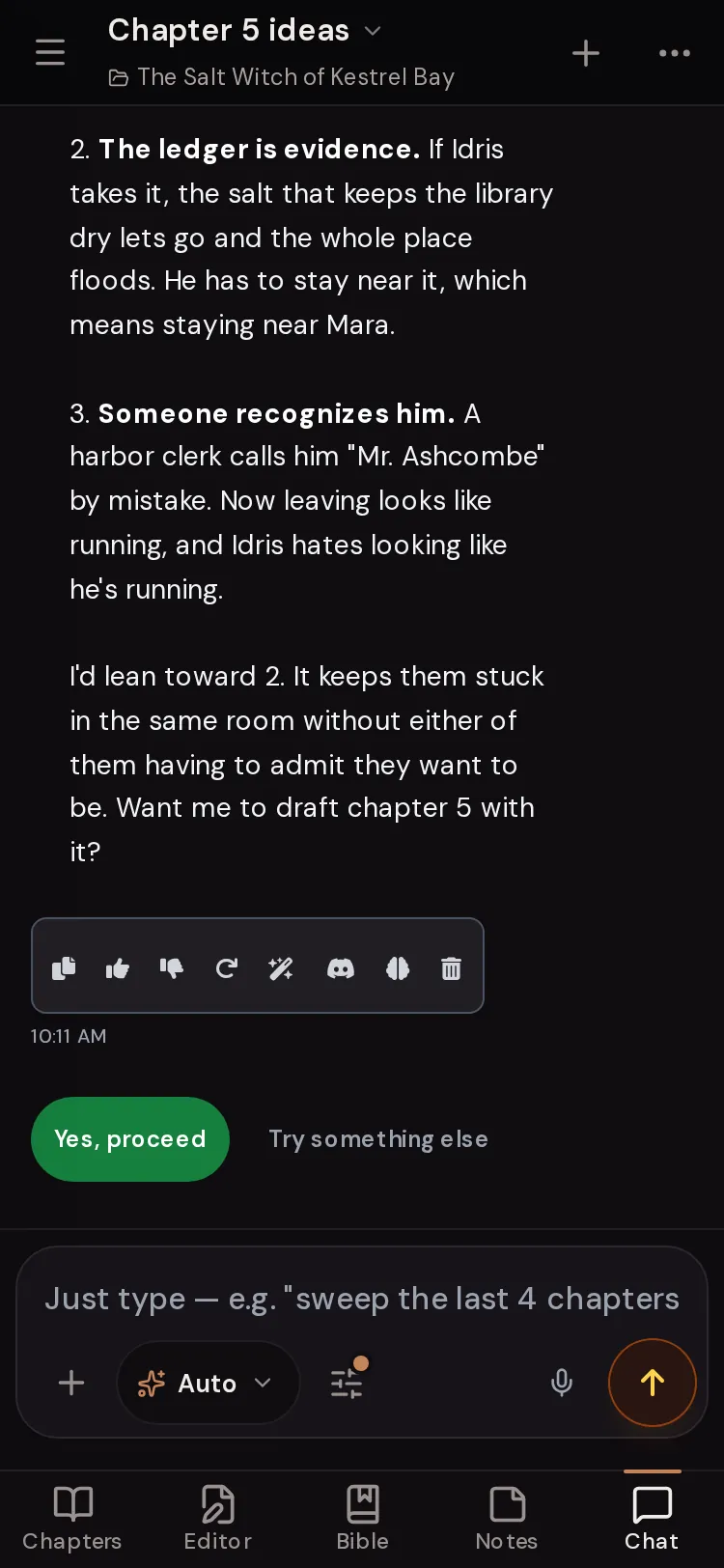
You talk to Paige in the chat box at the bottom of the chat. Type, press Send, and she replies or drafts writing into your book. Every reply has buttons to copy, redo, rewrite or rate it, and every chat is saved in your chat history.
6 min readUpdated

On this page
Step by step
Step 1: Type your message
Click the chat box and type. On desktop, Enter sends and Shift+Enter starts a new line. On a phone, tap the Send arrow.
Step 2: Watch Paige reply
Her reply streams in. If she writes chapter text or a Bible entry, it arrives as a draft for you to review.
Step 3: Keep typing if you like
While she writes, type your next message and tap “Queue”. It sends when she finishes. Tap the stop button to stop her.
Step 4: Use the buttons under a reply
Hover (desktop) or look under the reply (phone) for copy, versions, regenerate, rewrite and thumbs.
Step 5: Find old chats
Tap the chat name at the top to open “Conversations”. Filter by “Project”, “Unassigned” or “All”.

The chat box
The chat box sits at the bottom of the chat. Above it on desktop are the action bar (“What should Paige do?”) and chips for your Muse, Skills and “Writing with: Paige”. On a phone, the action bar is a pill, and the rest live behind the “+” and ⚙ buttons.
Want more room? Click “Write in full screen” (the expand icon) to make the box fill the screen. “Back to the small box” or Esc shrinks it again.
Paige replies in the language you write to her in. You don’t need to change any setting for that.

Typing while Paige writes, and stopping her
While Paige is writing, the box reads “Type your next line while Paige writes…”. If you type, the Send button becomes “Queue”: your message sends as soon as she finishes. Up to three messages can wait. Each uses a message from your daily allowance when it sends.
Queued messages show above the box marked “Beta”, with “Resume” and “Clear”, and you can edit one before it goes. A change to selected text can’t be queued: it sends once Paige finishes.
The square button stops Paige (“Stop generating”). Whatever she wrote so far stays in the chat.
When a reply stops early, or comes in two versions
Very long replies can hit a length limit. When that happens, a “Continue writing” button appears under the reply. Tap it and Paige carries on from where she stopped.
Sometimes you see “A second version is ready to compare” under a reply. Read “Answer 1” and “Answer 2”, then keep the one you like better, or pick “About the same”. Ignore it and you keep the reply you have.
Chat history
Tap the chat name at the top of the chat to open “Conversations”. Chats are grouped by “Today”, “Yesterday”, “Previous 7 Days”, “Previous 30 Days” and “Older”.
The filter switches between “Project” (chats in this project), “Unassigned” and “All”. Each chat has “Rename”, “Move to project” and “Delete”. “Select chats” lets you act on several at once. “New Chat” starts a fresh one.

Ask AI on a selection
In the editor, select a passage and tap “Ask AI”. The chat box shows “Your message will target this selection”. Type what you want changed, such as “make this angrier”, and Paige revises only those paragraphs. The change arrives as a draft.
This is one message only. After it sends, the action bar goes back to what it was. Tap the clear button next to the notice to stop targeting the selection.

Attachments, pictures and voice typing
Attach pictures, .docx, PDF or .txt files to a message so Paige can read them. On desktop use the paperclip; on a phone tap “+”, then “Photos or files”. You can also drag files onto the chat (“Drop files here”).
“Draw a picture” asks Paige to draw a scene. Describe it, pick a shape, and choose “Include a character” to draw someone as your Story Bible describes them, or “No one in particular”. “Reference images” picks pictures from this project for Paige to look at in this chat.
Voice typing (the microphone) turns speech into text. Tap, speak, tap again. It is part of every paid plan.
Questions
Does “Regenerate” use a message?
Yes. Regenerate and “Rewrite richer” each ask Paige for a new reply, so each one uses a message from your daily allowance.
Why can’t I regenerate an older reply?
Regenerate and the rewrite buttons only work on Paige’s latest reply. To change an earlier turn, use “Edit your message” on your message and resend it.
Where did my old chat go?
Open “Conversations” from the chat name and switch the filter to “All”. Chats from a deleted project are kept and show under “Unassigned”.
What is “Rewrite with”?
On paid plans with credits, it rewrites Paige’s latest reply with another writing model, once. Your usual model stays the same. Credits are bought separately and don’t expire.
Can Paige read a file I attach?
Yes: pictures, .docx, PDF and .txt. To bring a whole manuscript in as chapters, use “Import a manuscript” instead.
Paige answered in the wrong language.
Write your message in the language you want. For chapters, also set “Story language” in the Projects panel.
Related guides
Try it on your own story.
Start writing free