
How to outline your novel and set your style in WriteWithPaige
At the top of your Story Bible, “Plan your book” holds three things: a chapter-by-chapter “Story outline”, “Your style” so Paige writes like you, and “Narration” for point of view and tense. Once you have an outline, “Next in your outline” and “Write it” take you straight to the next chapter.
7 min readUpdated

On this page
Step by step
Step 1: Open Plan your book
Open the Story Bible (“Bible” in the rail or the bottom tab on a phone). “Plan your book” is at the top. Tap its heading to fold it away when you need room.
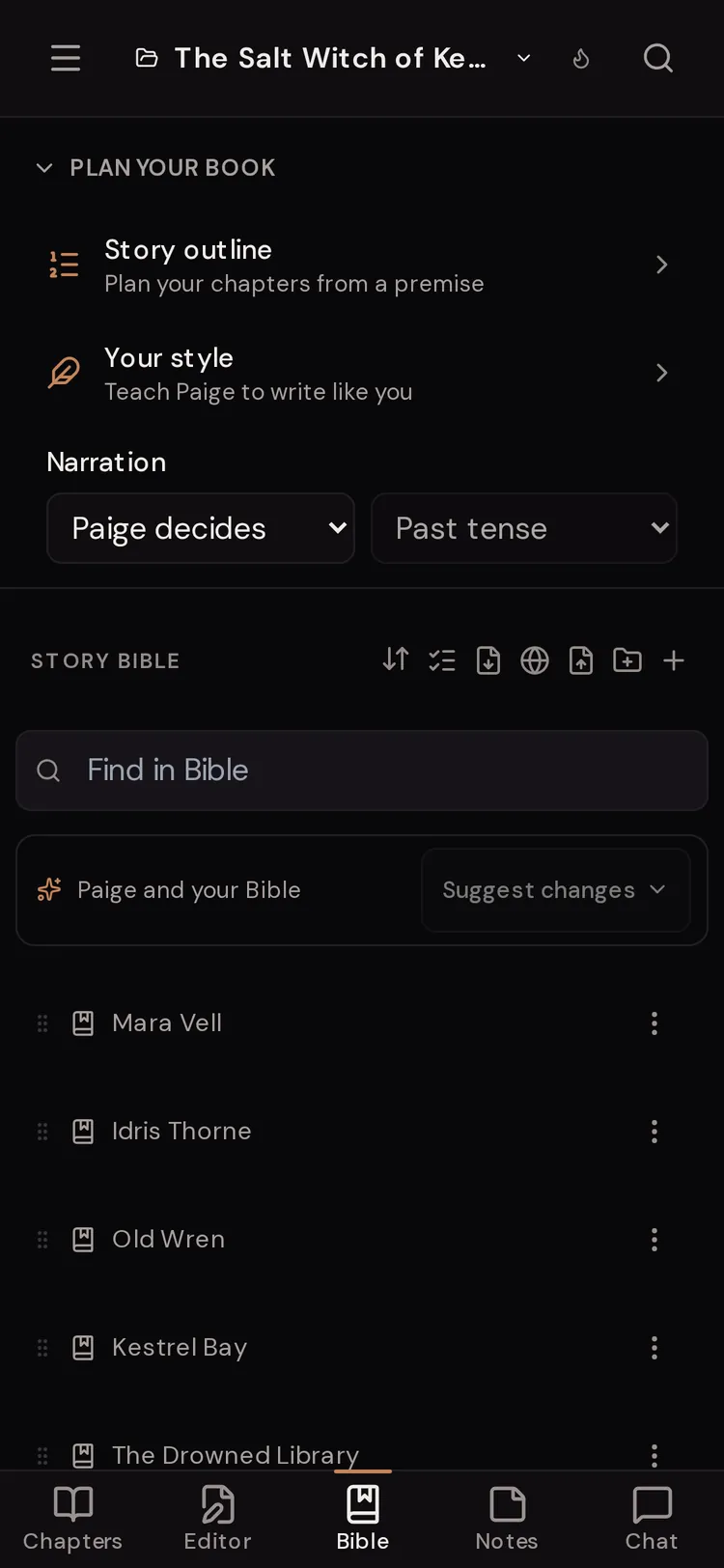
Step 2: Describe your story
Tap “Story outline”. Under “What is your story about?”, write a sentence or two: who wants what, what stands in the way and how you hope it ends.
Step 3: Pick a shape and a length
Choose a “Story shape” and how long the book should be under “How long?”. Then tap “Plan my chapters”. It takes about a minute.
Step 4: Edit the cards, then save
Each chapter is a card with a title and “What happens in this chapter?”. Change anything, reorder with the arrows, then tap “Save outline”.
Step 5: Write the next chapter
Tap “Write chapter” on the card marked “Next”, or “Write it” on the “Next in your outline” line in the Chapters list. Paige’s message box fills in a request for that chapter. Add anything you like and send.
Step 6: Teach Paige your style (optional)
Tap “Your style”, pick chapters you wrote or paste your own writing, tick the box to confirm it is yours, and tap “Read my style”. Check what she found, then tap “Use this style”.
Story shapes and lengths
A story shape is a classic structure. Paige spreads its steps (called beats) across your chapters, then writes what happens in your story at each one, using your names and facts.
- One chapter per beat: one chapter for each step of the shape (for example 12 chapters for the Romance Arc).
- “About 15 chapters”: a novella-length plan.
- “About 25 chapters”: a full-length novel plan.
- “Romance Arc (12 beats)”
- Meet, fall, fall apart, choose each other. Twelve steps to a happy ending.
- “Hero’s Journey (12 beats)”
- Leave home, get tested, come back changed. Works for any genre.
- “Story Circle (8 beats)”
- Want something, chase it, pay for it, come home different. Good for shorter books.
- “Four-Act Suspense Frame”
- A question, rising danger and a showdown. For thrillers and mysteries.
- “Your own shape”
- No set structure. Paige plans the chapters straight from your premise.
Working with your outline
Your outline opens as a list of cards headed “Your story outline”, with how many chapters are written. Each card shows “Chapter” and its number, a title, the beat it serves, and what happens.
A card counts as “Written” when the chapter at that position in your list has words, or when you tap “Mark written”. The first unwritten card is marked “Next”.
- Up and down arrows
- Move a card earlier or later.
- ⋯ on a card
- “Split in two”, “Add a chapter after” or “Remove”.
- “Write chapter” (on the Next card)
- Saves the outline and fills Paige’s message box with a request for that chapter.
- “Mark written” / “Marked written (undo)”
- Marks a card done by hand, for example if you wrote it somewhere else.
- “Save outline”
- Saves your changes. It says “Saved” when there is nothing new.
- “Match outline to my story”
- Paige reads your written chapters and updates the cards to match what actually happened. Changed cards show “Updated”. Tap “Undo” if you don’t like it, or “Save outline” to keep it.
- “Plan again”
- Starts over with a new shape or premise. Your saved outline stays until you save.
- “Delete outline”
- Removes the outline. Your chapters stay as they are.
How Paige uses your outline
Your outline is saved as a Story Bible entry called “Story outline”, with the type “Outline”. When Paige writes a chapter, she is handed that chapter’s card plus the one before and the one after. That keeps her on plan without burying her in the whole book.
The “Outline” entry type works this way for any entry you make, too. Unlike “Lore” and “Plot Arc” entries, which Paige reads every time, Outline entries are not always sent. Paige finds the part she needs, so asking for chapter 5 brings up the chapter 5 plan and nothing else.
In a shared story, if someone else saves the outline while you are editing, you see their version with yours kept aside. Tap “Use mine” to bring yours back, or “Dismiss”.
"Next in your outline" and "Write it"
Once you have a saved outline, the top of your Chapters list shows “Next in your outline” and the next chapter’s number and title. “Write it” opens the chat and fills in a request such as “Write chapter 4”, the title and what the card says should happen.
Nothing is sent until you press send, so you can add a line first (“open on the storm”, “keep it under 2,000 words”). When every card is written, the line goes away.
With no outline yet, the same spot offers “Outline the rest of your book” once your book has a chapter with words in it.
"Your style": teach Paige to write like you
Your style is a plain-words description of how you write. Paige then writes new passages in this book the way you would. It changes how the story is told, not what happens.
Choose “Pick my chapters” (pick chapters you wrote, not ones Paige drafted, up to 8) or “Paste writing” (500 to 3,000 words works best; at least 150 are needed). Tick “This is my own writing. Paige only uses it to learn my style for this book.” Then tap “Read my style”. It takes about 30 seconds.
Paige describes your style under “How you tell it”, “Your sentences”, “Dialogue”, “Tone”, “Description” and “Anything else”. You can change any of it, and add to “Words and phrases you use” and “Never use”.
Under “See the difference”, paste a paragraph and tap “Show me”. Paige continues it twice, once in her usual voice and once “In your style”. When you are happy, tap “Use this style”.
- The switch next to “Your style” (“Use my style in this book”) turns it on and off without deleting it.
- “Read different writing” starts again from a new sample. “Delete style” removes it, and Paige goes back to her usual voice.
- A style belongs to one book. Each book can have its own.
"Narration": point of view and tense
Pick a point of view and Paige narrates every chapter of this book that way. Leave it on “Paige decides” and she follows your chapters and requests.
- “First person (“I”)”
- Told by the main character. Closest and most confessional.
- “Third limited”
- Stays in one character’s head per scene. The most common choice in fiction.
- “Third omniscient”
- The narrator sees into everyone. Wide and cinematic.
- “Second person (“you”)”
- Puts the reader in the story. Rare in novels, and it pulls the reader right in.
- “Past tense” / “Present tense”
- Past is the default of most novels. Present feels immediate. Tense unlocks once you pick a point of view.
Questions
Does Paige write the whole book from the outline by herself?
No. She writes one chapter at a time when you ask, and every new chapter waits for you to add it to the book.
Can I outline a book I have already started?
Yes. Plan as usual, then tap “Match outline to my story” so the early cards match what you actually wrote. Cards for chapters that already have words count as written.
Will deleting the outline delete my chapters?
No. “Delete outline” only removes the plan. Your chapters stay exactly as they are.
Why is the tense box greyed out?
Tense unlocks after you pick a point of view. With “Paige decides”, Paige follows your chapters for both.
Can I use chapters Paige wrote to teach her my style?
You can, but it defeats the point. Pick chapters you wrote yourself, or paste your own writing, so she learns your voice and not hers.
Is there a shared outline across books in a series?
No. Each book has its own Story Bible, outline, style and narration settings.
Related guides
Try it on your own story.
Start writing free