
How Paige’s memory, banned words and style feedback work
Memory holds facts about you and your story that Paige should keep in mind, and you choose where each one applies: one chat, one project or everywhere. Banned words stop phrases you never want to see, and your thumbs feedback teaches Paige your style, all of which you can view and delete.
6 min readUpdated

On this page
Step by step
Step 1: Open Settings
On a phone, tap “Open menu” and then Settings. On a computer, click “Settings” in the left rail. Scroll to the Memory section.
Step 2: Open Memory
Tap “Memory”. The window shows what Paige remembers and where she may use it.
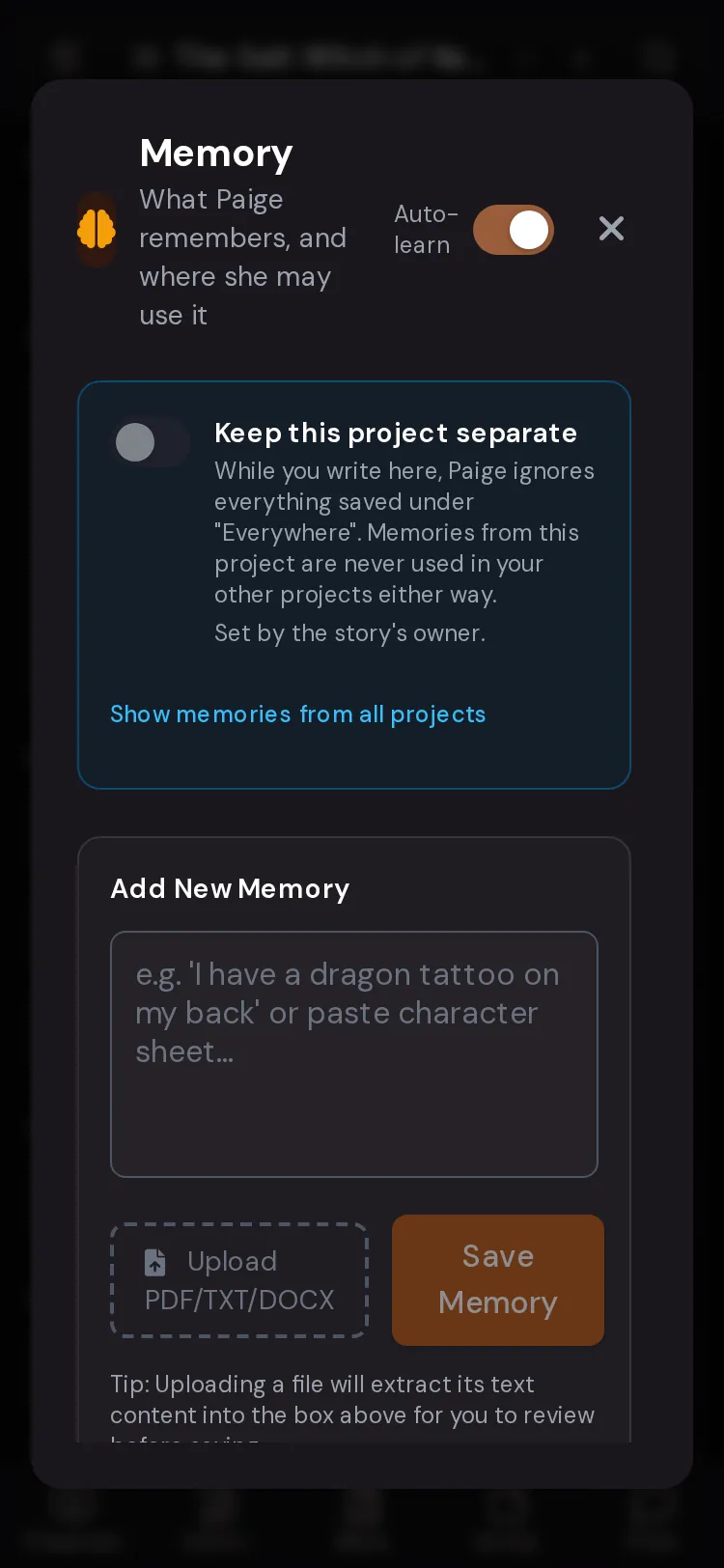
Step 3: Add a memory
Type a fact under “Add New Memory”, or tap “Upload PDF/TXT/DOCX” to pull the text in for review, then tap “Save Memory”.
Step 4: Set where it applies
Each memory has a dropdown: “This chat”, “This project” or “Everywhere”. Pick the narrowest one that is true.
Step 5: Ban phrases you are tired of
Back in Settings, tap “Banned Words & Phrases”, type a phrase and tap “Ban”.
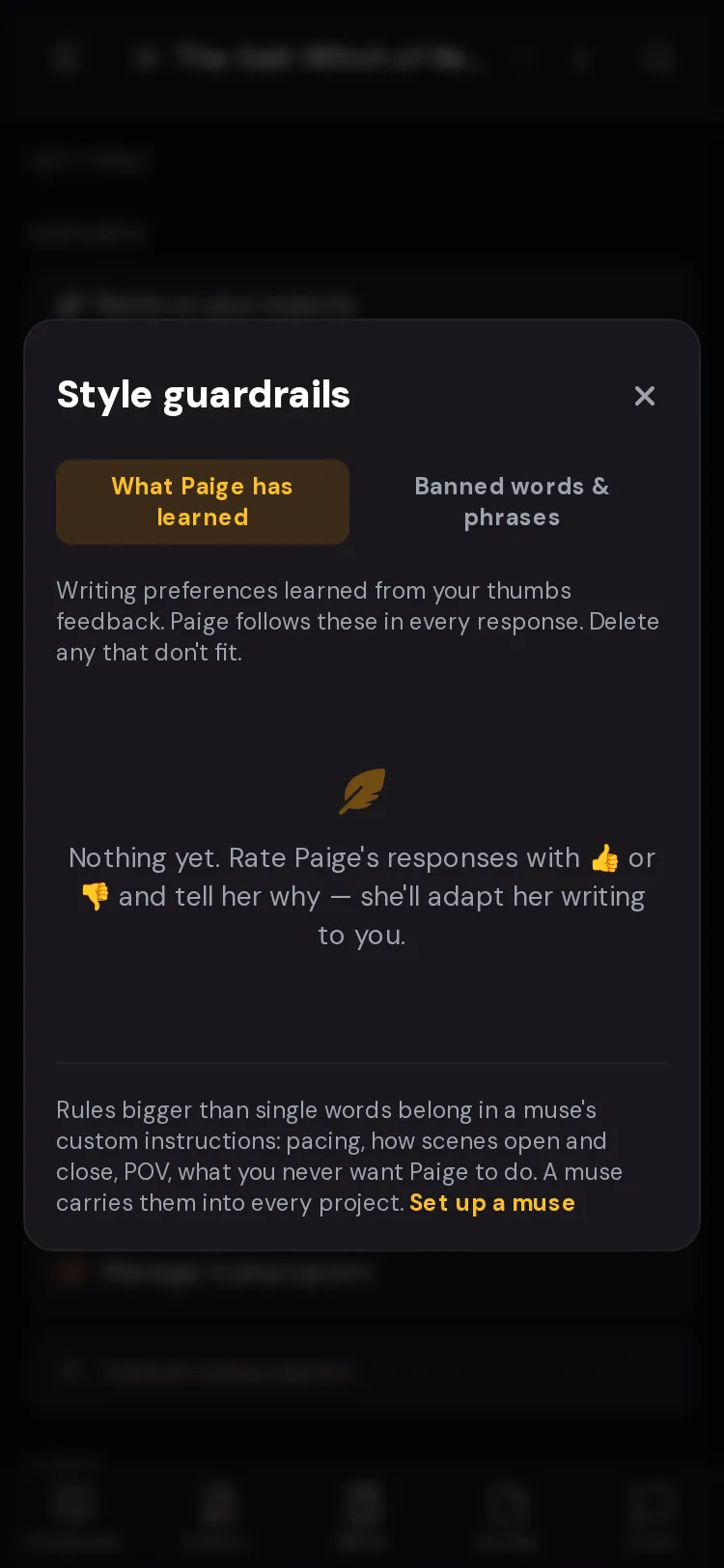
Step 6: Teach Paige with thumbs
Under any reply, tap thumbs up or down, pick a reason and add a short note. Check “What Paige Has Learned” to see the result.
Memory, Story Bible, Skills and Muses: which one to use
Four tools shape what Paige knows and how she writes. They overlap a little. This is what each one is for.
- Memory
- Short facts about you or your story that Paige should keep in mind, like “I write in British English” or “Mara is afraid of deep water”. Scoped to a chat, a project or everywhere. Paige pulls in the memories that fit the moment.
- Story Bible
- The full reference for one book: characters, places, items, lore, plot arcs and outlines. Per book only. Paige drafts changes for you to approve.
- Skills
- Rules for how Paige works, like “Always read the current chapters” or “End every chapter on a hook”. Switched on per story. Up to 8 at once.
- Muses
- A writing voice or persona Paige takes on: personality, style, genres and custom instructions. Picked per project. Blend up to 2.
The three scopes, and why they matter
“This chat” means only that one conversation uses it. “This project” means every chat in that book uses it, and no other book does. “Everywhere” means every project uses it, unless that project is set to keep itself separate.
Memories from one project are never used in your other projects. That keeps a dark thriller’s facts out of your cosy romance.
Save a reply to memory
Under a Paige reply, tap the brain icon (“Save this to Paige’s memory”). It turns into a tick when saved. The memory starts as “This chat”. Open Memory and change it to “This project” if the whole book should use it.
Save short replies, like a summary Paige wrote of a character’s backstory. A long chapter is better kept as a chapter, and lasting facts are better in the Story Bible.

Thumbs feedback: how Paige learns your style
Each reply has a thumbs up (“Good reply. Paige learns from this”) and a thumbs down (“Not right? Tell Paige what to fix”). After you tap one, quick reasons appear. Pick any that fit, or tap “Skip details”.
Reasons for a thumbs down include “Too repetitive”, “Too short”, “Pacing off”, “Wrong tone”, “Too flowery”, “Ignored my direction”, “Lacked tension” and “Doesn’t make sense”. Reasons for a thumbs up include “Perfect pacing”, “Great dialogue”, “Right tone”, “Vivid detail” and “Loved the tension”. The note box under them says “Paige learns your style from this”.
Paige turns this feedback into short writing preferences. You see them in Settings under “What Paige Has Learned”. “Paige follows these in every response. Delete any that don’t fit.” Preferences may be grouped by the writing mode you were in.
Try typing
“Fewer em dashes. Use commas or full stops instead.”
A clear, specific note works best. One idea per note.
Try typing
“Keep dialogue tags to “said”. No “growled” or “purred”.”
Try typing
“Let scenes end on an action, not a summary of feelings.”
Banned words and phrases
These are words and phrases Paige must never write: clichés, filler, anything you are sick of. The ban covers every chapter and reply, including plurals and -ing/-ed forms. Type a phrase of two characters or more and tap “Ban”. Tap the × on a chip to lift the ban.
The counter under the box shows how many slots you have used. While a Muse is on, that Muse’s own forbidden words apply too.
Try typing
“shivers down her spine”
Try typing
“a breath she didn’t know she was holding”
Try typing
“testament to”

Questions
Is Memory the same as the Story Bible?
No. The Story Bible is the full reference for one book, with entries you can lock, pin and organise. Memory is a list of short facts that can apply to one chat, one book or everywhere.
Paige saved something wrong. How do I fix it?
Open Settings, then Memory, and edit or delete it. Turn off Auto-learn if you only want memories you add yourself.
Why does Paige use a fact from another book?
It is probably saved as “Everywhere”. Change its scope to “This project”, or turn on “Keep … separate” in the book where it doesn’t belong.
Do banned phrases work in every project?
Yes. Your banned list applies to all your chapters and replies. A Muse’s forbidden words apply only while that Muse is on.
Does thumbs feedback change Paige for other writers?
The preferences in “What Paige Has Learned” are yours. They shape how Paige writes for you, and you can delete any of them.
What happens to my memories if I export my data?
Settings, Your Data, “Export Data” lets you include “AI Memories” in the download.
Related guides
Try it on your own story.
Start writing free