
WriteWithPaige settings: every option explained
Settings is one long panel, top to bottom: Appearance, Writing, Exports, Memory, AI Settings, credits, Subscription, Help, Your Data, Notifications and Community. On a phone you open it from the menu drawer, and on a computer from the left rail. There is no app-language setting: each story has its own language.
6 min readUpdated

On this page
Step by step
Step 1: Open Settings on a phone
Tap “Open menu” at the top left of the screen. The drawer slides in. Scroll down and tap “Settings”.
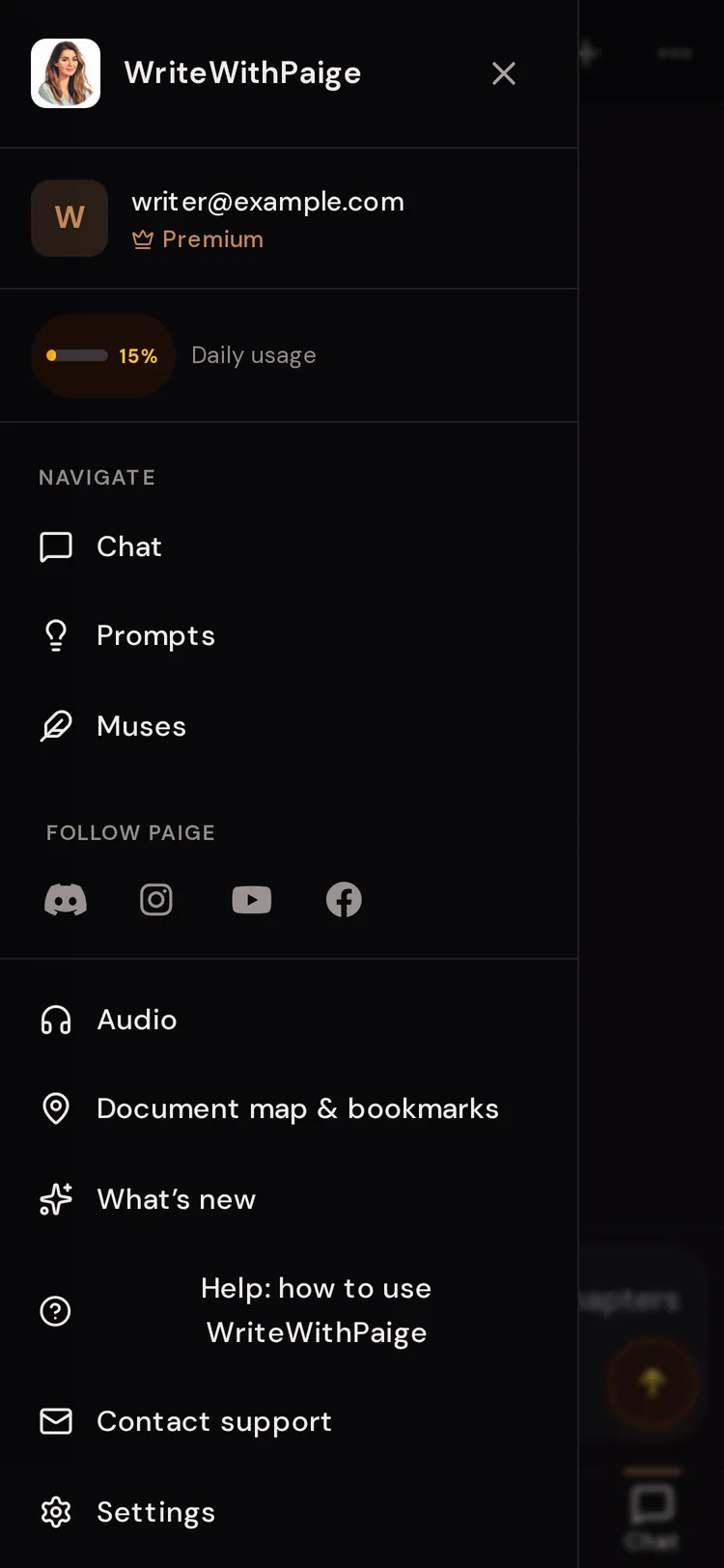
Step 2: Open Settings on a computer
Click the gear icon labelled “Settings”, the last icon in the left rail. The panel opens in the sidebar next to your editor.
Step 3: Scroll to the section you want
Everything is on one panel, no tabs. Sections appear in this order: Appearance, Writing, Exports, Memory, AI Settings, Integrations, Writing models & credits, Subscription, Gifts, Account, Help & Support, Your Data, Notifications, You Might Like, Community and Sign out.
Step 4: Change a setting
Most changes save as soon as you tap. Rows that open a window (Memory, API Key & Models, Export Data) have their own save or close button.
Appearance
These change how the app looks on this device. They do not change your writing.
- “Theme”
- “Light” or “Dark”.
- “Accent color”
- The colour of buttons and highlights: Terracotta, Indigo, Rose, Forest, Ocean or Plum.
- “Light background” / “Dark background”
- The page tone for the theme you are in. Light: Classic, Parchment or Mist. Dark: Ink, Black or Midnight.
- “Reading text size”
- Makes Paige’s replies, adventures and Read as story bigger or smaller on this device. For your chapters, use Aa in the editor toolbar instead.
- “Chat response font”
- “Match site” uses the same font as the app. “Literary” uses a serif font, like the manuscript editor.
Writing
- “Daily word goal”
- Pick 250, 500, 750, 1,000 or 2,000 words. Your streak resets at midnight in your time zone, shown under the buttons.
- “Show a daily writing prompt in the sidebar”
- A checkbox. Turn it off if you do not want a prompt card each day.
- Badges
- Your collection. Unlocked badges are in colour, locked ones are grey. Hover or press one to see how to earn it.
- “Skills”
- “Instruction packs that change how Paige works.” Opens the Skills page. See “Skills”.
Exports and Memory
Under “Exports” you set the name printed under the title on your EPUB, Word files and Story Bible exports. It starts as a one-line summary, such as “by Your Name”. Type a pen name in the box and tap “Save”. The line below shows exactly how your exports will read. Leave it empty to use the name on your account.
- “Memory”
- Things Paige remembers about you and your writing, for this chat, this project or everywhere. The row says “This project & everywhere” when a project is open.
- “What Paige Has Learned”
- The style habits Paige picked up from your edits and feedback. Review or remove them.
- “Banned Words & Phrases”
- Words you never want to see in Paige’s writing.
AI Settings, Integrations and credits
Integrations and Writing models & credits only show in writing projects, not in a brand workspace.
- “API Key & Models”
- Opens “AI Settings”, where you can “Use your own AI” with a key from a provider you choose. See “Use your own AI key”.
- “Integrations”
- Shows “ReadFanFiction” with “Connect”. Once connected it reads “ReadFanFiction: connected as @yourname” with “Disconnect” (tap twice to confirm).
- “Writing models & credits”
- “Writing with” shows the model your replies use. Paid plans also see the credit balance, “Add credits”, “Top up automatically” and a credit history. Free writers see “Other models are available on paid plans.”

Subscription and Gifts
What you see here depends on your plan. On Free there is one button, “Upgrade to Premium”, which opens the plans window.
Subscribers see “Manage Subscription” (opens the billing portal for your card and invoices) and the date it “Renews” or gives “Access until”. Monthly subscribers also see a “Switch to annual” button. There is “Cancel subscription” at the bottom. If you already cancelled, you see “Keep my subscription”. If you paused, you see “Paused. Billing resumes…” with “Resume now”. Starter subscribers also see “Change your price”.
On a gifted plan the section shows “Gift: Plus” (or Pro or Ultra), “Until … Nothing renews.” and “Keep it after your gift”. Some accounts with access from somewhere else see “Premium Access” and the date it lasts until.
Below that, paying subscribers see “Invite a writer friend”, and everyone sees “Gifts” with “Give Paige as a gift” (plus your own gift link, if you made one). Business team members see “Team”. Your sign-in email shows under “Account”.
Help, data and notifications
- “How to Use WriteWithPaige”
- Opens this guide in a new tab.
- “FAQ”
- Short answers to common questions.
- “Paige for Chrome”
- The free Chrome extension. If you already have it, this may say “Review Paige on the Chrome Web Store”.
- “Contact Support”
- Opens an email to paige@writewithpaige.com.
- “Export Data”
- Downloads a backup ZIP of your work. See “Your data”.
- “Delete Account”
- Asks “Delete your account?” first. See “Your data” before you tap it.
- “Notifications”
- “Turn on” or “Turn off” alerts when a reply or chapter is ready. On iPhone, add WriteWithPaige to your Home Screen first.
- “You Might Like”
- A link to a free image maker for covers, character art and mood boards.
- “Community”
- “Tips, new features and other writers. Come say hi.” Links to the writers’ Discord and social pages.
- “Sign out”
- Signs you out on this device. Your work stays saved to your account.
What is not in Settings
There is no app-language setting. The app’s buttons are in English. Each project has its own “Story language” in the Projects panel, and Paige replies in whatever language you write to her in.
Genre, tone and the project name are also per project, in the Projects panel. Style and length for replies are in the Style button by the chat box.

Questions
How do I change the language Paige writes in?
Open the Projects panel and set “Story language” for that project. There is no app-wide language setting, and Paige also replies in the language you write to her in.
Why don’t I see “Writing models & credits” or “Integrations”?
They only show in writing projects. In a brand workspace they are hidden. “Integrations” also only appears when publishing to ReadFanFiction is available.
Do my appearance settings follow me to other devices?
Treat them as per device. Set theme, background and text size on each phone or computer you use.
Where do I change my email or password?
Settings shows your sign-in email under “Account” but does not change it. Email paige@writewithpaige.com from “Contact Support” and ask.
I turned on notifications on my iPhone but nothing happens.
On iPhone, notifications only work from the Home Screen app. Tap Share, then “Add to Home Screen”, open WriteWithPaige from there, and turn them on again.
Related guides
Try it on your own story.
Start writing free