
How to use Skills to change how Paige works
A Skill is a short set of instructions Paige follows on every reply in a story, like “always read the current chapters” or “end each chapter on a hook”. You can borrow Skills other writers shared, write your own, and turn up to 8 on per story. Skills are on every plan.
6 min readUpdated

On this page
Step by step
Step 1: Open Skills in your story
On a computer, click the “Skills” chip in the message box. On a phone, tap the sliders button (“How Paige writes”) and scroll to Skills.
Step 2: Turn one on
Flip the switch next to a Skill. The chip now reads “1 skill on”. If your list is empty, the panel offers “Always read the current chapters” with “Turn on for this story”.
Step 3: Find more
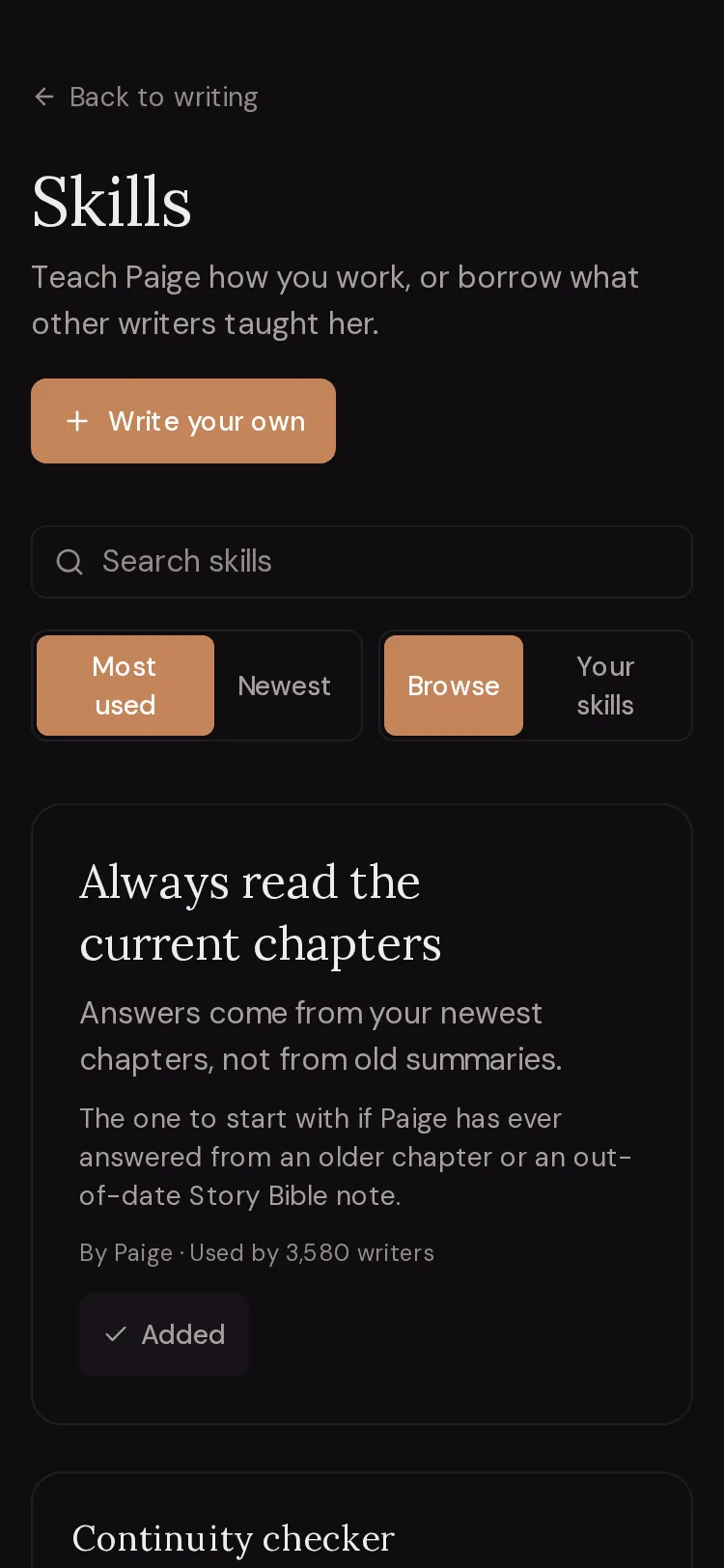
Tap “Browse skills”. On the Skills page, tap “Add & turn on” on any Skill to add it and switch it on for this story.
Step 4: Write your own
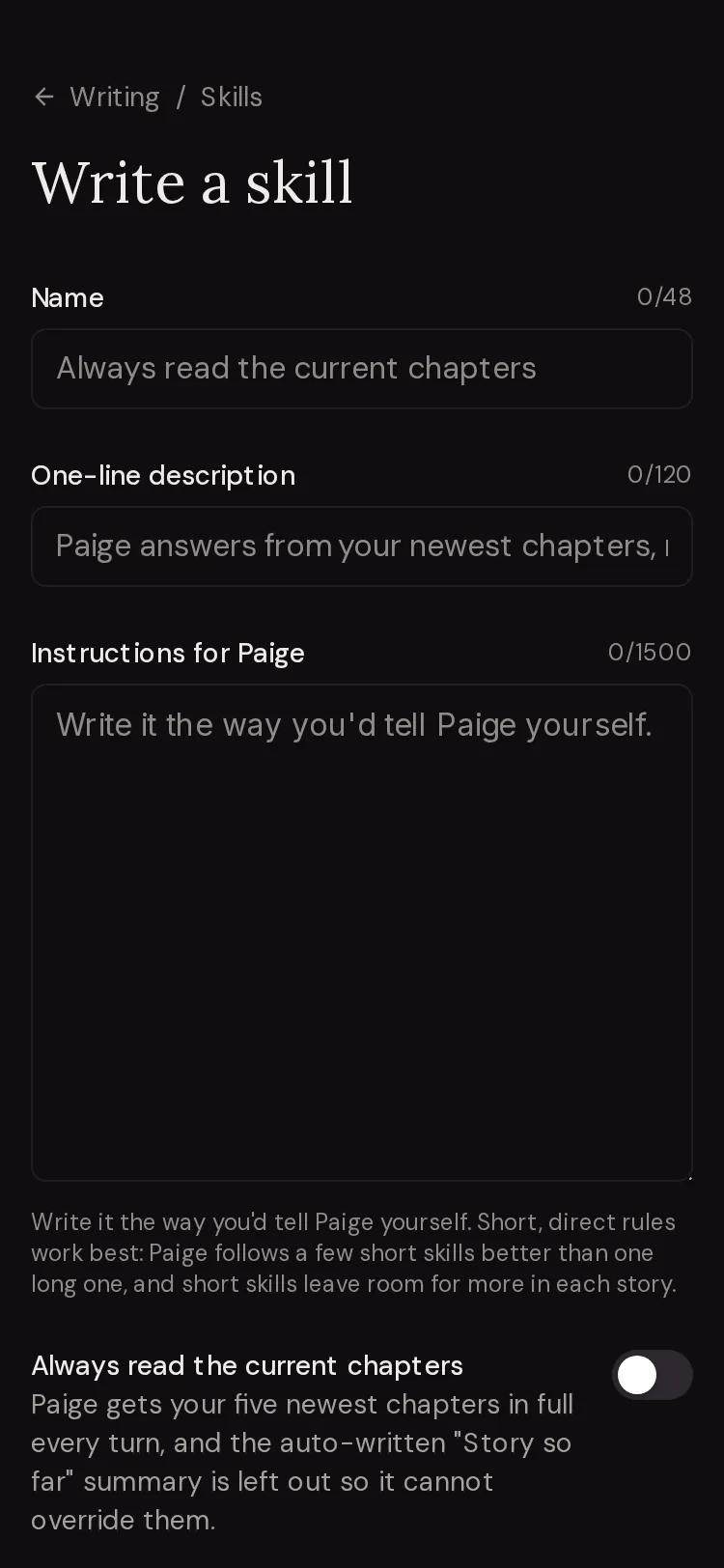
Tap “Write your own”. Fill in “Name”, “One-line description” and “Instructions for Paige”, check the “Preview”, then tap “Save for me”.
Step 5: Save a set
With the Skills you want switched on, tap “+ Save these as a set” and name it, for example “Editing”. Tap the set later to switch the story to it in one tap.

When a Skill is the right tool
Use a Skill for how Paige should work in a story, every turn, without you repeating it. Skills sit next to your other settings. Your own requests and the project’s content settings outrank them.
Use the Story Bible for facts about the story, Memory for facts about you, and a Muse for voice. See the comparison table in the memory guide.
Try typing
“End every chapter on a question or a turn that makes the reader want the next one.”
A cliffhanger Skill for serial fiction.
Try typing
“Before you revise, list the three biggest problems in the chapter in one line each. Then revise only those.”
An editing Skill.
Try typing
“Write dialogue the way real people talk: interruptions, half-answers, no speeches. Tag with “said” only.”
Try typing
“Keep each character’s voice distinct. Mara speaks in short, blunt lines. Idris uses long, careful sentences.”
Works best alongside matching Story Bible entries.
Try typing
“When I ask a question about the story, answer in plain sentences first. Do not write prose unless I ask.”
The "Skills in this story" panel
This panel shows the Skills in your library and which are on for this story.
- Room meter
- “Room: …% used”. Skills share a fixed amount of room per story. Short Skills leave space for more.
- Switch
- Turns a Skill on or off for this story only.
- Skill name
- Opens its page so you can read exactly what Paige is told.
- Share with other writers
- Shown on your own private Skills. Opens the form so you can edit it or share it.
- Skill sets
- Named groups you saved. Tap one to switch the story to it. Tap × to remove the set.
- + Save these as a set
- Saves the Skills on now under a name.
- Browse skills
- Opens the Skills page, ready to add Skills to this story.
- Write your own
- Opens the form for a new Skill.
Messages you may see on a Skill
These short notes explain why a Skill is not being used:
- Not enough room left for this one. Switch another off to fit it.
- The Skills already on fill the room. Turn one off, or pick a shorter Skill.
- On, but it grew too long for the room. Paige skips it until you switch another off.
- Its author made it longer after you switched it on. Paige skips the whole Skill rather than cutting it halfway.
- Removed by moderators. Paige no longer follows it.
- The Skill was taken down after review.
- turned on by someone else sharing this story
- A co-author switched these on. They apply to the shared story.
The Skills page
Open it from “Browse skills”, from Settings (“Skills”), or at writewithpaige.com/skills. It says “Teach Paige how you work, or borrow what other writers taught her.”
- Browse / Your skills
- All shared Skills, or the ones you added and wrote.
- Search skills
- Find Skills by words in their name or description.
- Sort
- “Most used” or “Newest”.
- By Paige
- A badge on Skills made by the WriteWithPaige team.
- Reads full chapters
- A badge on Skills that use the “Always read the current chapters” switch.
- Add & turn on
- Shown when you came from a story. Adds the Skill and switches it on there. Elsewhere the button just says “Add”.
- Write your own
- Opens the Write a skill form.

A Skill’s own page
Tap any Skill to see its page. “What Paige is told” shows the exact instructions, so you always know what you are turning on. “What else changes” lists any switch the Skill uses.
Use “Add to my skills” to keep it in your library. Use “Turn on for a story” to pick one of your books and tap “Turn on”. If a Skill looks wrong or harmful, tap “Report”, say why, and tap “Send”. Skills that several writers report are hidden until someone reviews them.
On your own Skill you also get “Edit” and “Delete”.
Write a Skill that works
“Name” is up to 48 characters. “One-line description” is what writers see in the list. “Instructions for Paige” must be 20 to 1,500 characters. The form’s advice is right: “Short, direct rules work best: Paige follows a few short skills better than one long one, and short skills leave room for more in each story.”
Check the “Preview” to see the card as others would. Then choose “Save for me” (private, “Just for you, unless you share it”) or “Share with everyone”. “Shared skills show your anonymous pen name, never your email.” There is a small daily limit on how many Skills you can share. To make a shared Skill private again, edit it and tap “Save for me”.
The "Always read the current chapters" switch
This is the one Skill feature that changes what Paige reads. Every other Skill only changes what she is told. “Paige gets your five newest chapters in full every turn, and the auto-written “Story so far” summary is left out so it cannot override them.”
Turn it on if Paige mixes up what happened in recent chapters or answers from an old summary. You can add the switch to your own Skill in the Write a skill form, or turn on the ready-made Skill “Always read the current chapters” by Paige. Paige may also offer it with “Paige mixing up chapters?”.
Questions
Are Skills a paid feature?
No. Skills work on every plan, including Free.
Do Skills apply to all my books?
No. You switch Skills on per story. A Skill in your library does nothing until it is on for a book.
Why can’t I turn on another Skill?
Either 8 are already on, or the room is full. Switch one off, or use a shorter Skill.
Can people see my email if I share a Skill?
No. Shared Skills show your anonymous pen name, never your email.
A Skill and my message disagree. Which wins?
Your message. Your own rules and requests, and the project’s content settings, outrank Skills.
What happens if the author changes a Skill I use?
You get the new version. If it becomes too long for the room left in your story, Paige skips it and the panel tells you.
Related guides
Try it on your own story.
Start writing free